Your video has three seconds.
Maybe less.
That’s how long you’ve got before someone scrolls past your content and forgets you ever existed.
The difference between a viral hit and a complete flop often comes down to how you edit, not just what you film.
Video editing for social media isn’t the same as editing for traditional media anymore.
The rules have changed.
Platforms prioritize different formats, audiences expect different pacing, and the tools available now can do things that would’ve taken hours just a couple years ago.
Whether you’re creating TikToks, Reels, or Shorts, these video editing tips will help you stop the scroll and actually get your content seen.
Key Takeaways
- Hook in the first 2 seconds – Your opening frames matter more than your entire introduction combined
- Edit for silent viewing – Over 85% of social videos are watched without sound, so captions aren’t optional anymore
- Prioritize authenticity over polish – Audiences respond better to relatable, story-driven content than overproduced clips
- Use AI strategically – Let automation handle drafts and formatting, but keep creative decisions human
- Optimize for vertical formats – Vertical videos consistently outperform horizontal content on social platforms
1 Video Editing Tips That Start Before You Even Open Your Editor
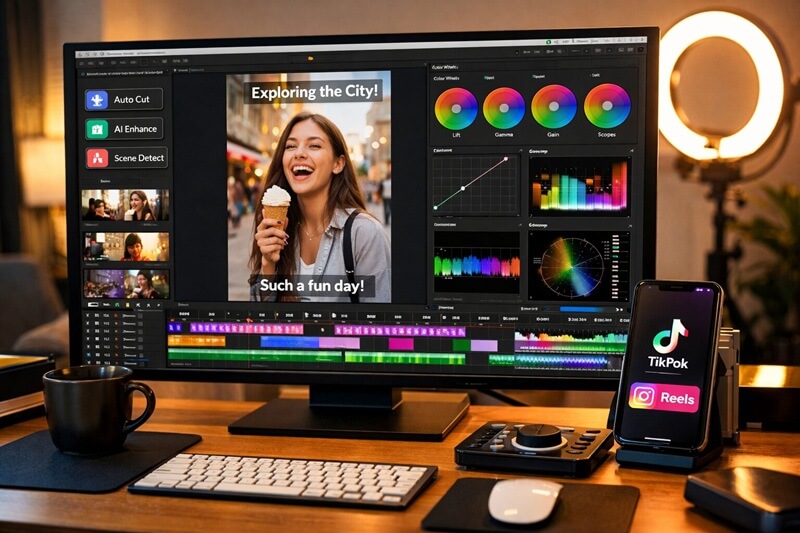
The best edits start with the right footage. Sounds obvious, but most creators waste hours trying to fix problems in post that should’ve been handled during filming.
Shoot with the edit in mind. Before you hit record, know exactly what moments you need. If you’re creating a tutorial, capture each step clearly. If it’s a talking head video, record multiple takes of your hook so you have options. The more intentional your filming, the faster your editing goes.
Record in short bursts instead of long continuous takes. This gives you natural cut points and makes it easier to find your best moments when you’re reviewing footage.
Always capture b-roll. Even if you think you won’t need it, shoot extra footage of relevant visuals, products, or environments. When you’re editing and realize a section drags, having b-roll ready saves you from either publishing a boring video or reshooting everything. Tools like QuickVid’s AI video generator can also help fill gaps with AI-generated b-roll when you’re in a pinch.
2 Master the First 2 Seconds (Or Lose Everything)
Here’s the brutal truth: if your video doesn’t grab attention in the first two seconds, nothing else matters. Your carefully crafted story, your perfect color grading, your witty conclusion won’t get seen if viewers scroll past immediately.
Start with movement or a visual hook. Static shots kill engagement instantly. Open with action, a surprising visual, or something that creates immediate curiosity. Think about what makes you stop scrolling when you’re mindlessly browsing TikTok at 11 PM. It’s usually something unexpected.
Text overlays in the opening frame work incredibly well. A provocative question or bold statement that appears immediately gives viewers a reason to keep watching.
Cut your intros completely. The “Hey guys, welcome back to my channel” approach is dead for short-form content. Jump straight into the value or entertainment. You can introduce yourself later once you’ve earned their attention. For more on creating compelling openings, check out our guide on how to create social media hooks that actually stop the scroll.
Pattern interrupts work wonders. If your video starts similar to thousands of others, it’ll get scrolled past just as quickly. Find ways to break expected patterns. Use unusual camera angles, unexpected audio choices, or contrarian takes on common topics.
3 Edit for Silent Viewing (Because Everyone’s Watching Without Sound)
Most people watch social media videos on mute. They’re at work, in public, or just have their phone on silent by default. If your video requires sound to make sense, you’ve already lost most of your potential audience.
Add captions to everything. Not just for accessibility (though that’s important), but because captions dramatically increase watch time and engagement. Many editing apps (like QuickVid) now have auto-caption features that handle this in seconds. Review them for accuracy, but don’t skip this step.
Use text overlays to emphasize key points. When you make an important statement, have that text appear on screen. This reinforces your message visually and helps viewers retain information even when they’re not listening to audio.
Design your visual storytelling to work independently of narration. Show what you’re talking about. If you’re explaining a process, demonstrate it visually. If you’re making a point, use graphics or b-roll that illustrates the concept without requiring audio explanation.
Test every video by watching it muted before publishing. If it doesn’t make sense or loses impact without sound, you may need to add more visual elements.
4 Prioritize Vertical and Square Formats in Your Video Editing Tips
Vertical videos have gained significantly more traction than horizontal formats across all major platforms. If you’re still editing in landscape and hoping for the best, you’re fighting an uphill battle.
Edit natively in 9:16 vertical format. Don’t shoot horizontal and crop later. You’ll lose important visual information and end up with awkward framing. Plan your shots for vertical from the start, keeping important elements in the center where they’ll display properly on mobile screens.
Square (1:1) format works well for feed posts on Instagram and Facebook, giving you more flexibility than vertical while still optimizing for mobile.
Build repeatable workflows that export multiple formats from one edit. Advanced editing software lets you create one master edit and export versions optimized for different platforms without starting from scratch each time.
Frame your subjects appropriately for vertical viewing. Keep faces and important visual elements in the upper two-thirds of the frame where they’re most visible. Text overlays work best in the middle third, avoiding the top and bottom where platform UI elements might cover them.
For more technical guidance on getting your dimensions right, check out our articles on TikTok aspect ratio and YouTube Shorts aspect ratio.
5 Use AI Editing Tools Strategically (Not as a Complete Replacement)
Let AI handle the tedious stuff. Auto-captioning, background noise removal, rough cuts, and format conversions are perfect tasks for AI. These are time-consuming but don’t require creative judgment.
AI script editors can polish your narration and voiceover scripts with instant feedback on flow, tone, and clarity before you even record. This speeds up the pre-production process and often results in tighter, more engaging final videos.
Keep creative decisions human. AI can suggest cuts and transitions, but it may not understand your brand voice, audience preferences, or strategic goals. Use AI-generated suggestions as a starting point, not the final product. Review everything and make intentional choices about what stays and what goes.
Combine AI-generated b-roll with your footage strategically. When you need supplemental visuals, AI image generators and video tools can fill gaps, but mix them with authentic footage to maintain credibility.
6 Cut Ruthlessly and Keep Only What Serves Your Story
Every second of your video should earn its place. If a clip doesn’t advance your story, support your message, or entertain your viewer, it needs to go.
Remove filler words and pauses aggressively. “Um,” “uh,” “like,” and long pauses between thoughts make your content feel slow and unprofessional. Modern editing software can identify and remove these automatically, or you can do it manually.
Cut before you think you need to. The moment a shot starts feeling long, it probably already is. What feels like a quick cut to you might feel slow to someone scrolling their feed.
Use jump cuts liberally. The polished, seamless editing style of traditional media doesn’t work for social content. Jump cuts signal authenticity and energy. They keep your video moving and make it feel more conversational and less produced.
Watch your video at 1.5x or 2x speed during editing. This helps you identify sections that drag. If a part feels boring at increased speed, it’ll definitely feel boring at normal speed. Cut or tighten it.
Kill your darlings. That perfect shot that took 20 takes? If it doesn’t fit the flow of your final edit, remove it. Save it for another video, but don’t force it into this one just because you love it.
7 Add Captions and Text Overlays That Actually Enhance Your Content
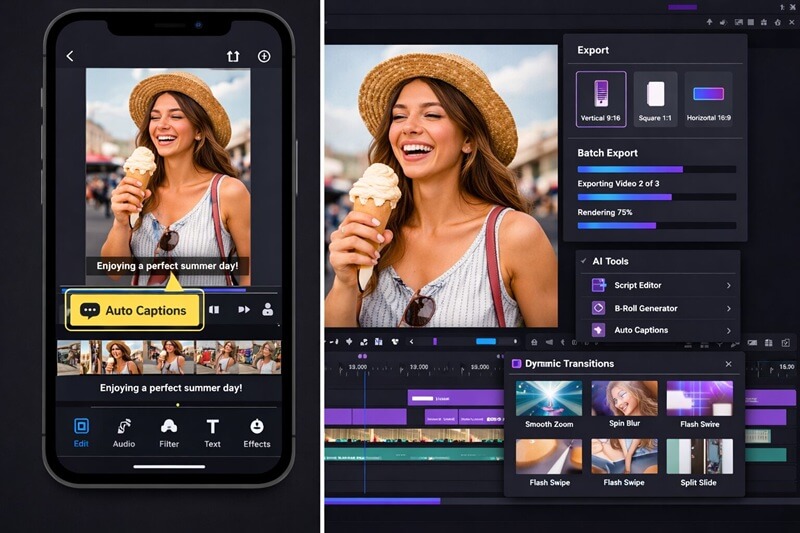
Captions aren’t just for accessibility. They’re a core engagement tool.
Videos with captions get higher completion rates, more shares, and better overall performance. But there’s a difference between helpful captions and distracting ones.
Style your captions to match your brand. Use consistent fonts, colors, and positioning across all your videos. This creates visual recognition and makes your content instantly identifiable.
Some creators use bright yellow text with black outlines, others prefer clean white text on semi-transparent backgrounds. Find your aesthetic and stick with it.
Emphasize key words with different colors or animations. When you say something particularly important, make those words pop visually. This reinforces your message and helps with retention.
Keep text overlays concise. If you need more than 10-12 words on screen at once, you’re probably trying to say too much. Break longer thoughts into multiple text cards or simplify your message.
Position text strategically to avoid platform UI elements. Instagram and TikTok have buttons, profile pictures, and other interface elements that can cover your text if you’re not careful.
8 Leverage Trending Audio and Music (But Make It Your Own)
The right music or trending sound can dramatically increase your video’s reach on TikTok and Instagram, where algorithms favor trending audio.
Use trending sounds strategically. When a sound is trending, videos using it get preferential treatment in the algorithm. But don’t force a trending sound that doesn’t fit your content. Find trends that align with your message and audience.
Edit your video to match the beat. Cuts that sync with musical beats feel more professional and satisfying to watch.
Mix original audio with trending sounds. You can overlay your voiceover or original sound effects on top of trending background music. This gives you the algorithmic boost of the trending audio while maintaining your unique voice and message.
Adjust audio levels carefully. Background music should enhance your video, not compete with your voiceover. A good rule of thumb: music should be about 20-30% of the volume of your speaking voice.
For guidance on working with audio from other platforms, see our article on Instagram audio download.
9 Create Consistent Visual Branding Across Your Video Editing
Your videos should be instantly recognizable as yours, even before viewers see your username.
Develop a color palette and stick to it. Choose 2-3 primary colors that appear in your graphics, text overlays, and transitions. This creates visual cohesion across all your content. You don’t need to be a designer. Just pick colors that represent your brand and use them consistently.
For outros, include a clear call-to-action that’s visually consistent across videos. This could be “Follow for more tips” with your logo, or a subscribe button animation.
Create editing presets for common elements. Save your caption styles, transition preferences, and color grades as presets you can apply quickly to new videos. This speeds up editing and ensures consistency.
Develop a signature editing style. Maybe you always use a specific transition type, or you have a particular way of revealing information. These small stylistic choices become part of your brand identity over time.
10 Optimize Your Editing Workflow for Batch Production
Batch production transforms video editing from a daily grind into an efficient system.
Record multiple videos in one session. Set up your lighting and camera once, then record 5-10 videos back-to-back. This gives you a content bank to edit throughout the week or month. The setup time is the same whether you record one video or ten.
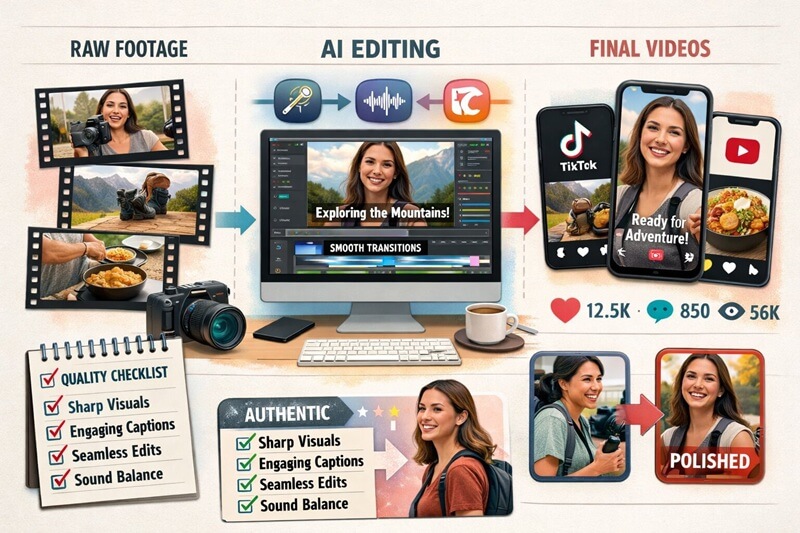
Create a standardized editing checklist. Every video should go through the same quality steps: caption check, audio level verification, format confirmation, thumbnail creation, etc. Having a checklist prevents mistakes and speeds up your process.
Edit in dedicated blocks of time rather than scattered throughout the day. Set aside 2-3 hour blocks specifically for editing, turn off notifications, and power through multiple videos in one session.
If you create YouTube videos or podcasts, extract highlight segments and edit them for TikTok, Instagram, and Shorts. One piece of source material can become 10+ social videos with smart editing. Learn more about this in our guide on how to clip YouTube videos.
11 Balance Authenticity with Production Quality
The pendulum has swung away from heavily polished, overproduced content toward spontaneous, relatable videos. But that doesn’t mean quality doesn’t matter. It means the definition of quality has changed.
Edit for story and connection over flashy effects. Audiences respond better to authentic-feeling videos that tell a clear story than to technically perfect videos with no soul. Focus on narrative arc, emotional resonance, and relatability first, then add polish where it enhances rather than distracts.
Use effects and transitions sparingly. Every transition should serve a purpose. Flashy effects for their own sake make videos feel dated and amateurish. Simple cuts and occasional purposeful transitions usually work better than constant visual chaos.
Match your production level to your platform and audience. LinkedIn audiences might expect slightly more polished content than TikTok audiences.
Test different editing styles and let performance data guide you. Create some videos with minimal editing and others with more production value. See which ones your audience engages with more, then adjust your approach based on results rather than assumptions.
12 Use Dynamic B-Roll to Maintain Visual Interest
Even the most engaging speaker becomes boring to watch if the camera never moves or changes. B-roll keeps your videos visually dynamic and helps illustrate your points.
Plan your b-roll during scripting. When writing your video script, note exactly what visuals should appear during each section. This ensures you capture or source the right footage, making editing much faster.
Layer b-roll over talking head footage rather than cutting away completely. Keep your audio consistent while showing relevant visuals. This maintains continuity while adding visual variety.
Combine AI-generated images with dynamic transitions. When using AI-generated visuals as b-roll, add motion through transitions, zooms, or pans to create movement. Static AI images can feel lifeless, but simple animations bring them to life.
Source b-roll from multiple places. Your own footage, stock video sites, AI generators, and screen recordings can all work together. Variety in your b-roll sources creates more interesting visual storytelling.
13 Master Platform-Specific Export Settings
You can create a perfect edit and ruin it with the wrong export settings. Each platform has optimal specifications, and using them ensures your video looks as good as possible.
Export in the highest quality your platform supports. For most social platforms, this means H.264 codec, MP4 format, and high bitrate. Don’t compress your videos too much trying to reduce file size. Platforms will compress them anyway, and starting with low quality makes the final result worse.
Match your frame rate to your source footage. If you filmed in 30fps, export in 30fps. Mismatched frame rates can cause stuttering or unnatural motion.
Verify your resolution and aspect ratio before exporting. TikTok and Reels want 1080×1920 (9:16 vertical), YouTube Shorts accepts the same, and Instagram feed posts work well at 1080×1080 (1:1 square). Exporting in the wrong dimensions means your video gets cropped or letterboxed.
Include captions in the video file itself rather than relying on platform auto-captions. This ensures they appear correctly and look the way you designed them.
For detailed specifications on specific platforms, check out our guides on how to make a YouTube Short and how long can a YouTube Short be.
14 Analyze Performance and Iterate Your Editing Approach
The best video editing tips come from your own performance data. What works for one creator or brand might not work for you. Let analytics guide your editing decisions.
Track which editing styles perform best. Do videos with text overlays get better retention? Do jump cuts increase watch time? Does a specific type of hook lead to more shares? Your analytics dashboard has these answers.
Compare editing time to performance results. If a video that took you 30 minutes to edit performs just as well as one that took 3 hours, you’re wasting time on elements that don’t matter to your audience. Optimize for efficiency where it doesn’t hurt results.
Study your best-performing videos and reverse-engineer what made them work. Was it the pacing? The hook? The topic? The editing style? Identify patterns in your wins and deliberately replicate those elements in future content.
15 Develop a Quality Checklist Before Publishing
Even experienced editors miss things when they’re deep in a project. A standardized quality checklist catches mistakes before your audience sees them.
Create a pre-publish checklist that includes: Captions are accurate and readable, audio levels are balanced, video is exported in the correct format and resolution, there are no awkward cuts or visual glitches, the hook is strong in the first 2 seconds, and the call-to-action is clear.
Watch your video on a mobile device before publishing. Most of your audience will see it on their phones, so that’s how you should review it. What looks great on a computer monitor might have readability issues on a 6-inch screen.
Verify your thumbnail is compelling and accurate. For platforms that use thumbnails (YouTube Shorts, Instagram feed), this is often the first thing people see. Make sure it represents your content and entices clicks.
Conclusion: Start Implementing These Video Editing Tips Today
Video editing for social media isn’t about perfection. It’s about connection, clarity, and consistency. The creators and brands winning on TikTok, Instagram, and YouTube Shorts aren’t necessarily the ones with the best equipment or the most advanced skills. They’re the ones who understand their audience, edit strategically, and publish consistently.
Start with the fundamentals: nail your first 2 seconds, add captions to everything, edit for vertical viewing, and cut ruthlessly. These alone will put you ahead of most creators.
Whether you’re using sophisticated desktop software or mobile apps like QuickVid’s AI-powered tools, the barrier to entry has never been lower. The difference between mediocre and exceptional content comes down to strategy and execution, not budget. Need more inspiration for your content? Check out our collection of video ideas for social media to keep your content calendar full and your editing skills sharp.