YouTube Shorts has taken over the platform. You open the app, and there they are. An endless scroll of vertical videos demanding your attention.
For creators and marketers trying to focus on long-form content strategy or specific research, this constant bombardment can be frustrating.
The question everyone’s asking: is there a way to disable YouTube Shorts?
Here’s the truth. You can’t completely eliminate YouTube Shorts from your experience, but you can dramatically reduce their presence.
This guide walks through every method available to minimize Shorts on both mobile and desktop, explains why you might want to do this, and provides actionable steps that actually work.
Key Takeaways
- Complete blocking isn’t possible: YouTube doesn’t offer an official toggle to permanently disable Shorts, but reduction methods exist
- “Not Interested” signals work: Repeatedly marking Shorts as uninteresting trains YouTube’s algorithm to show fewer of them
- Multiple methods required: Combining mobile app settings, browser extensions, and parental controls provides the best results
- Consistency matters: These techniques must be applied repeatedly across multiple Shorts to achieve meaningful reduction
- Parental controls now available: As of January 2026, YouTube introduced teen-focused controls that limit endless scrolling through Shorts
Why You Might Want to Disable YouTube Shorts
The rise of short-form video content has transformed social media, but it’s not for everyone. People have legitimate reasons for wanting to reduce or eliminate Shorts from their YouTube experience.
Focus and productivity concerns top the list. Shorts are designed to be addictive. The vertical scroll format mirrors TikTok’s endless feed, making it easy to lose 30 minutes when you only meant to check one video.
Content preference matters too. Many users prefer long-form content that provides depth, detailed explanations, and comprehensive coverage of topics. Shorts, by their nature, sacrifice nuance for brevity. If you’re researching video editing techniques or trying to understand complex marketing strategies, a 60-second Short won’t cut it.
Algorithm manipulation is another factor. When you watch Shorts, YouTube’s recommendation algorithm shifts. It starts suggesting more Shorts and less of the long-form content you may want. This creates a feedback loop where your homepage becomes increasingly dominated by vertical videos, even if that’s not your preferred content type.
Parental concerns have grown significantly. Parents want their teens engaging with educational or age-appropriate content, not getting lost in an endless scroll of random Shorts.

Professional image considerations also come into play. Marketers and business owners often share screens during presentations or client calls. Having Shorts prominently displayed on your YouTube homepage can appear unprofessional.
Is There a Way to Disable YouTube Shorts?
Let’s address the elephant in the room. According to official Google Support documentation, there is not a way to completely block YouTube Shorts. YouTube doesn’t provide a built-in toggle or setting that permanently removes the Shorts section from the app or website.
This isn’t an oversight.
It’s intentional.
YouTube has invested heavily in Shorts as a response to TikTok’s dominance in short-form video. Providing an easy disable option would undermine this strategic priority.
However, “can’t completely disable” doesn’t mean “can’t reduce significantly.” Multiple workarounds exist that, when applied consistently, can minimize Shorts to the point where they’re barely noticeable.
The key word here is consistently. These methods aren’t one-and-done solutions. They require repeated application and ongoing maintenance. Think of it like training YouTube’s algorithm to understand your preferences. The more signals you send that you’re not interested in Shorts, the fewer you’ll see.
The effectiveness varies by platform. Mobile apps offer different options than desktop browsers. Your YouTube account settings, watch history, and engagement patterns all influence how well these methods work.
Understanding this reality helps set proper expectations. You won’t achieve a Shorts-free YouTube experience overnight, but with the right combination of techniques, you can reclaim your homepage and focus on the content that matters for you or your content creation strategy.
How to Disable YouTube Shorts on Mobile Devices
Mobile is where most users encounter Shorts, and fortunately, it’s also where you have the most direct control options. These methods work on iPhone, Android, Samsung, and any device running the official YouTube app.
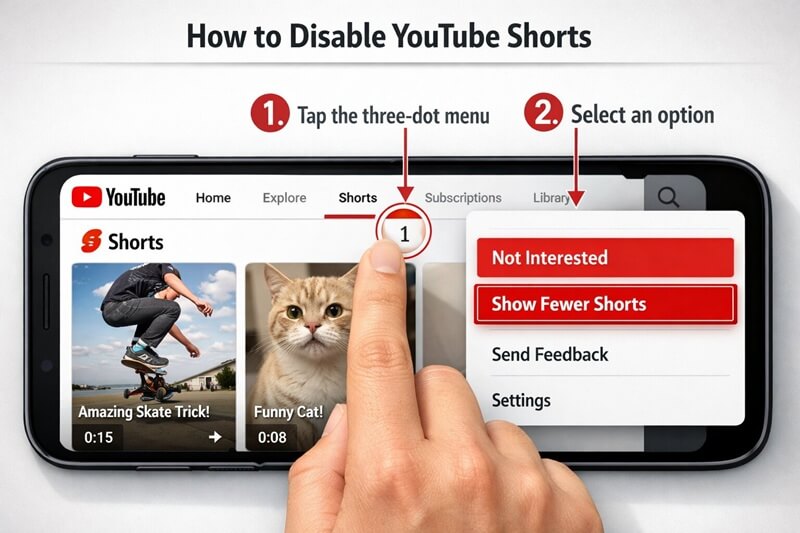
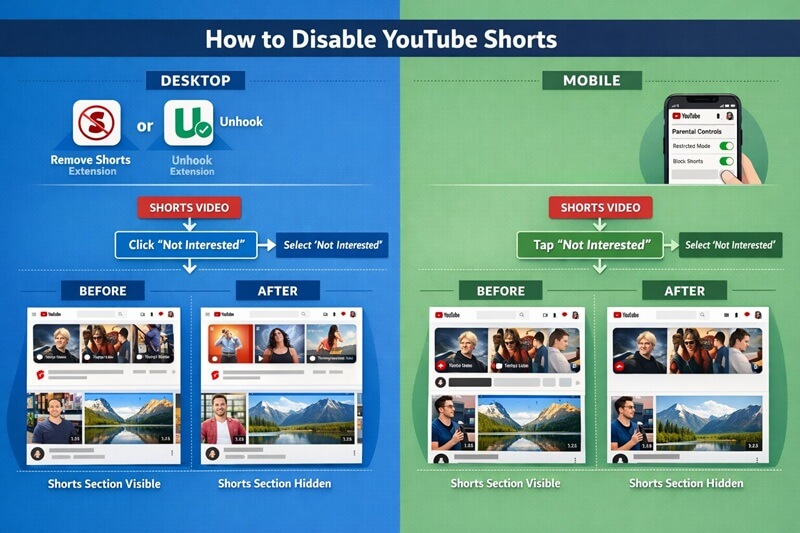
The “Not Interested” approach is your primary weapon. When you see the Shorts section on your YouTube homepage, look for the three vertical dots (⋮) next to the “Shorts” header. Tap these dots, and you’ll see options including “Not Interested” or “Show Fewer Shorts.” Select this option to signal to YouTube that you don’t want this content.
Here’s the critical part: you must do this multiple times. Tapping “Not Interested” once won’t make a noticeable difference. Plan to do this at least 10-15 times over several days to see meaningful results.
Individual Short filtering provides another layer of control. When a Short appears in your feed, tap the three dots on that specific video. You’ll see options like “Not Interested” or “Don’t Recommend Channel.” Selecting these tells YouTube’s algorithm that you don’t want similar content. Again, consistency matters.
App updates are essential before attempting these methods. Older versions of the YouTube app may not display these options correctly. Navigate to your device’s app store, search for YouTube, and ensure you’re running the latest version.
Parental controls offer a different approach, particularly relevant for family accounts. As of January 18, 2026, YouTube introduced features allowing parents to restrict their teens from endlessly scrolling through Shorts. Access these through the YouTube app settings under “Parental Controls” or “Family Link” if you’re managing a supervised account. These controls don’t completely disable Shorts but can limit viewing time and set content restrictions.
Avoid engaging with Shorts entirely. Don’t tap on them, don’t watch them, don’t like or comment. Every interaction tells YouTube you’re interested. Complete disengagement, combined with the “Not Interested” signals, creates the strongest possible message about your content preferences.
These mobile methods require patience and persistence. You won’t see overnight transformation, but consistent application over two to three weeks typically produces noticeable reduction in Shorts visibility. For creators managing multiple accounts or conducting social media video research, setting aside time each week to maintain these settings becomes part of your workflow.
How to Disable YouTube Shorts on Desktop and Browser
Desktop users have different tools available, primarily through browser extensions and URL manipulation. While YouTube’s web interface doesn’t offer the same “Not Interested” buttons as mobile, third-party solutions fill this gap effectively.
Browser extensions provide the most comprehensive desktop solution. Extensions like “Hide YouTube Shorts” (available for Chrome and Firefox) automatically remove the Shorts shelf from your YouTube homepage. These extensions work by detecting and hiding the HTML elements that display Shorts, effectively making them invisible without affecting other YouTube features.
URL manipulation offers a manual alternative. When you encounter a YouTube Short (identifiable by the /shorts/ in the URL), you can convert it to a regular video format by modifying the URL structure. Replace “youtube.com/shorts/” with “youtube.com/watch?v=” followed by the video ID. This forces the Short to play in the standard YouTube player, though it doesn’t prevent Shorts from appearing in your feed.
Subscription feed focus helps on desktop too. Instead of using the YouTube homepage (where Shorts prominently appear), bookmark youtube.com/feed/subscriptions. This page only shows uploads from channels you’ve subscribed to, typically in chronological order. While some creators post Shorts to this feed, the concentration is much lower than the algorithm-driven homepage.
Ad blockers with custom filters can target Shorts-specific elements. If you’re already running an ad blocker like uBlock Origin, you can add custom filter rules that specifically hide YouTube Shorts sections. This requires some technical knowledge but provides granular control over exactly what appears on your YouTube pages.
Browser profiles offer another strategy for marketers managing multiple accounts. Create separate browser profiles for different purposes. One for short-form video research where Shorts are acceptable, another for long-form content where they’re not. Each profile maintains its own YouTube history and recommendations, preventing cross-contamination.
Incognito or private browsing mode provides temporary Shorts reduction. When you browse YouTube in incognito mode, the platform can’t access your watch history or cookies. This means you see a more generic homepage with fewer personalized Shorts recommendations. The downside is you also lose access to your subscriptions and personalized long-form recommendations.
Desktop methods generally prove more effective than mobile because browser extensions offer true blocking rather than just algorithmic suggestions.
Alternative Solutions and Workarounds
Beyond the standard mobile and desktop methods, several creative workarounds can help minimize your Shorts exposure while maintaining YouTube functionality.
YouTube Premium doesn’t disable Shorts, but it does change the viewing experience. Without ads interrupting your flow, you’re less likely to get distracted by Shorts during ad breaks. Premium also enables background play, making it easier to use YouTube for audio content while avoiding the visual temptation of Shorts altogether.
RSS feed subscriptions provide a Shorts-filtered way to track your favorite creators. Many YouTube channels offer RSS feeds that list new uploads. Subscribe to these feeds through an RSS reader, and you’ll get notifications about new long-form content without ever visiting the YouTube homepage where Shorts dominate.
Playlist-based consumption changes how you interact with YouTube entirely. Instead of browsing the homepage, create playlists of videos you want to watch. Access YouTube only through these playlists, never touching the homepage or recommendations. This requires more upfront curation but eliminates algorithmic distractions, including Shorts.
Desktop-only YouTube usage represents a lifestyle change some professionals adopt. By committing to only access YouTube on desktop (where extensions can block Shorts completely), you eliminate mobile temptation entirely. This requires discipline but proves effective for those who struggle with mobile app addiction.
Alternative platforms for short-form research can reduce your YouTube dependence. If you need to stay current with short-form video trends, consider doing that research on TikTok, Instagram Reels, or platforms like QuickVid that focus specifically on short-form content creation. This compartmentalizes your short-form exposure to dedicated research time rather than having it constantly present on YouTube.
These alternative approaches work best in combination. You may use browser extensions on desktop, third-party apps on mobile, and playlist-based consumption for specific research tasks. The key is finding a combination that fits your workflow while minimizing unwanted Shorts exposure.
Conclusion
While you can’t completely disable YouTube Shorts, you can dramatically reduce their presence through consistent application of the methods outlined in this guide. The combination of mobile “Not Interested” signals, desktop browser extensions, and strategic viewing habits creates a YouTube experience focused on the content that matters for your goals.
Remember that effectiveness requires persistence. Mark Shorts as uninteresting repeatedly across multiple sessions. Install browser extensions on all devices you use for YouTube. Avoid engaging with Shorts entirely, even when tempted. These actions, maintained over several weeks, train YouTube’s algorithm to show you less short-form content.
For creators and marketers, controlling your YouTube environment isn’t just about personal preference. It’s about professional effectiveness. When you’re researching competitors, analyzing video trends, or planning content strategy, Shorts represent distractions that derail focus. Taking control of your YouTube experience through these methods protects your productivity and ensures you’re consuming content that advances your professional objectives.
Ready to create your own short-form content on your terms? QuickVid offers AI-powered tools for generating engaging short videos across multiple platforms, giving you control over your content creation process without the endless scroll.