Ever spent 30 minutes perfecting an Instagram post, only to lose it because you couldn’t find where it was saved?
It happens.
Understanding how to see drafts on Instagram is one of those essential skills that separates frustrated creators from efficient ones.
Here’s the thing: Instagram’s draft feature is useful, but it’s also surprisingly confusing. The platform stores different content types in different places, and if you don’t know where to look, your carefully crafted content can feel like it’s vanished into thin air.
This guide breaks down everything you need to know about finding, managing, and using Instagram drafts effectively.
Key Takeaways
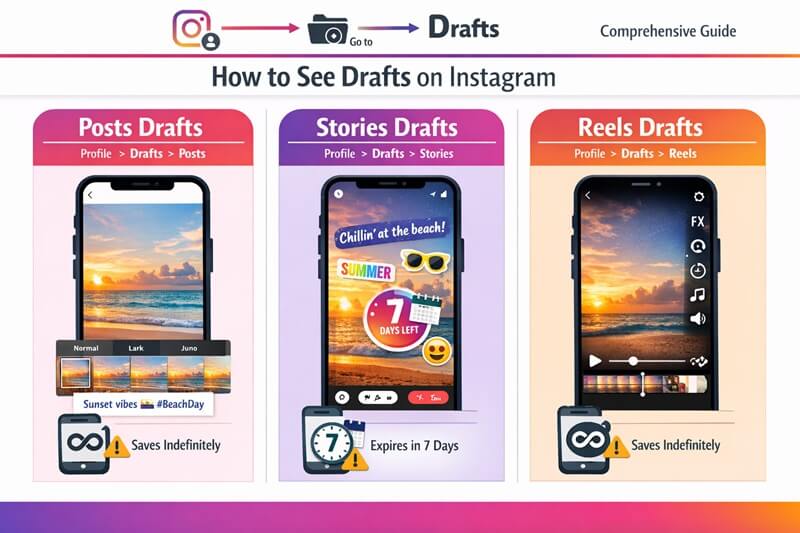
- Instagram stores three types of drafts separately: Posts, Stories, and Reels have different locations and access methods
- Story drafts expire after 7 days, while Post and Reels drafts are saved indefinitely
- Drafts are device-specific and won’t sync across multiple phones or tablets
- All your edits are preserved including filters, captions, hashtags, music, and effects
- Quick access paths exist for each content type, saving you time when you’re ready to publish
What Are Instagram Drafts and Why Should You Care?
Instagram drafts are partially completed posts, Stories, or Reels that you’ve saved without publishing. Think of them as your creative workspace. A place where ideas can sit until they’re ready to be used.
Drafts let you batch-create content when inspiration strikes, then schedule publishing for optimal engagement times. You can experiment with different captions, test various filters, or wait for that perfect trending audio to pair with your Reel.
The draft feature preserves everything. Your carefully selected filters? Saved.
Those hashtags you spent 20 minutes researching? Still there.
The trending audio you added? Ready to go.
This means you can work on content in stages without losing progress.
But here’s where it gets tricky: Instagram doesn’t store all drafts in one convenient location.
Posts, Stories, and Reels each have unique draft folders, and the navigation differs for each. That’s exactly why knowing how to see drafts on Instagram for each content type matters so much.
How to See Drafts on Instagram: Posts, Stories, and Reels
Finding Your Post Drafts
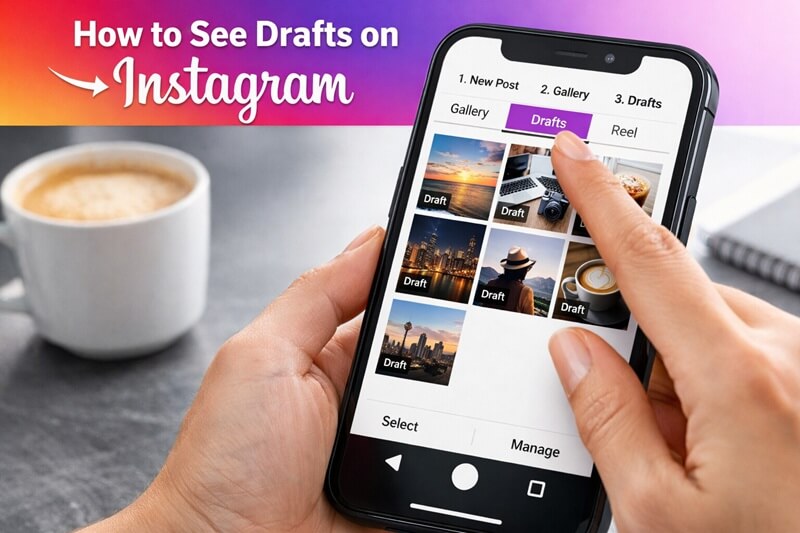
Post drafts are probably the most straightforward to access, but only if you know the exact path. Here’s the step-by-step process:
- Tap the + button at the bottom center of your Instagram home screen
- Select “Post” from the menu that appears
- Choose “Library” (or “Gallery” depending on your device)
- Look for the “Drafts” tab at the top of the screen
- Tap “Drafts” to view all your saved post drafts
Your post drafts will appear with a small “Draft” label in the corner. These drafts preserve all your edits including filters, captions, hashtags, location tags, and even people you’ve tagged in the photo.

The beauty of post drafts?
They never expire. You can save a post draft today and come back to it six months from now. It’ll still be there with all your edits intact.
Accessing Your Story Drafts
Story drafts work differently, and they come with a critical limitation you need to know about. Here’s how to find them:
- Open the Instagram Story camera by swiping right from your home feed
- Tap the Gallery icon in the bottom left corner
- Look for the “Drafts” folder among your photo albums
- Select the drafts folder to see all saved Story drafts
Story drafts expire after 7 days. Instagram doesn’t give you a warning before deleting them, so if you’ve created a Story draft, you need to publish it within a week or lose all that work.
This time limit makes sense when you consider Stories’ ephemeral nature, but it can be frustrating if you’re planning content further in advance.
Pro tip: If you need to keep a Story concept longer than 7 days, screenshot it or save the edited version to your camera roll before the draft expires.
Locating Your Reels Drafts
Reels drafts are perhaps the most valuable for content creators because video editing takes serious time. You’ve got two ways to access them:
Method 1: Through the Create Menu
- Tap the + button at the bottom of your screen
- Select “Reel” from the options
- Look for “Drafts” at the bottom of the screen
- Tap to view all your saved Reel drafts
Method 2: Through Your Profile
- Navigate to your profile by tapping your profile picture
- Select the Reels tab (the film strip icon)
- Look for drafts at the top of your Reels grid
- Tap any draft to continue editing or publish
Reels drafts preserve everything: video edits, effects, audio, captions, hashtags, aspect ratio, and timing adjustments. Like post drafts, Reels drafts don’t expire, so you can take your time perfecting that content.
This is especially useful when you’re working with trending audio. You can create the Reel, save it as a draft, and wait for the perfect moment to publish when engagement is highest. For more ideas on what to post on Instagram, check out our complete breakdown.
Understanding Instagram’s Draft Limitations
The Device-Specific Problem
Here’s something that catches many creators off guard: Instagram drafts are device-specific. If you create a draft on your iPhone, you can’t access it from your iPad or Android tablet. The draft lives exclusively on the device where you created it.
This limitation can be frustrating if you’re someone who switches between devices. Maybe you film content on your phone but prefer editing on a tablet with a larger screen. Unfortunately, you’ll need to complete the entire process on one device.
The workaround? Stick to one primary device for content creation, or use third-party tools that offer cloud-based draft storage.
Some people export their edited videos and reimport them on different devices, but this can reduce quality and lose some Instagram-specific edits.
What Gets Saved (and What Doesn’t)
Instagram drafts are pretty comprehensive, but it’s worth knowing exactly what they preserve:
Post Drafts Save:
- All photo edits and filters
- Complete captions with line breaks
- Hashtags (even if you haven’t finished your research)
- Location tags
- Tagged people
- Alt text (if you added it)
Story Drafts Save:
- Photos or videos
- Stickers and GIFs
- Text overlays with fonts and colors
- Drawings
- Filters and effects
Reels Drafts Save:
- All video clips and edits
- Audio tracks (including trending sounds)
- Effects and filters
- Text overlays
- Captions and hashtags
- Aspect ratio settings
- Speed adjustments
- Timing and transitions
What drafts don’t save are scheduled publishing times (Instagram doesn’t offer native scheduling) and some temporary effects that require real-time processing.
Why Instagram Drafts Are Essential for Content Strategy
Batch Creating Content Like a Pro
The most successful Instagram creators don’t post randomly. They batch-create content. This means setting aside dedicated time to create multiple posts, Stories, or Reels at once, then saving them as drafts for strategic publishing.
Here’s why this works. Creative energy is finite. When you’re in the zone, you might knock out five great Reels in an hour. But trying to create one Reel every day when you’re not feeling inspired? That’s a recipe for mediocre content.
Drafts let you capitalize on your productive moments. Film and edit everything when you’re energized, save it all as drafts, then publish throughout the week when engagement is highest for your audience.
This approach is particularly valuable for marketers managing multiple client accounts. You can dedicate Monday mornings to creating content, save everything as drafts, then strategically publish throughout the week. If you’re looking to get monetized on Instagram, consistent posting is crucial, and drafts make consistency achievable.
Testing and Iterating Before Publishing
Drafts give you the freedom to experiment without commitment. You can:
- Try different caption styles and save multiple versions
- Test various hashtag combinations without publishing
- Experiment with filters and see which looks best
- Play with different audio tracks on Reels
- Create A/B versions of the same content concept
This testing phase is where good content becomes great content. Instead of rushing to publish, you can step away, come back with fresh eyes, and make improvements.
Many successful creators save multiple versions of the same post as drafts, then choose the best one when it’s time to publish. This quality control process is what separates amateur content from professional-grade posts.
Capitalizing on Trending Audio and Hashtags
Timing is everything on Instagram, especially with Reels. When a song starts trending, you want to jump on it quickly, but you might not have time to create content from scratch.
This is where drafts shine. You can create Reels with trending audio, save them as drafts, and keep them ready to publish when the trend peaks. Since Reels drafts preserve the audio track, you’re not losing that trending sound.
The same strategy works for trending hashtags and challenges. Create content in advance, save it as a draft, then publish when the hashtag is at maximum visibility.
For creators working on short-form video content, this strategy is essential. Trends move fast, and having a library of draft content means you’re always ready to participate.
Managing Your Drafts: Best Practices
Organizing Your Draft Library
As you accumulate drafts, organization becomes crucial. Instagram doesn’t offer folders or tags for drafts, so you need your own system.
Here are some strategies that work:
Caption-Based Organization: Use the first line of your caption as a label. For example, start with “[PROMO]” for promotional content or “[TUTORIAL]” for educational posts. This makes it easy to scan your drafts and find what you need.
Chronological Planning: Create drafts in the order you plan to publish them. Your oldest draft is next week’s Monday post, the second-oldest is Tuesday’s, and so on.
Theme Batching: Create all your drafts for a specific campaign or theme at once. If you’re running a product launch, create all related content as drafts in one session.
Regular Audits: Set a weekly reminder to review your drafts. Delete outdated content, update captions that reference time-sensitive information, and ensure Story drafts haven’t expired.
Avoiding Common Draft Mistakes
Mistake #1: Forgetting About Story Draft Expiration
Set calendar reminders for Story drafts. If you’re not going to publish within 7 days, save the content to your camera roll instead.
Mistake #2: Creating Drafts on Multiple Devices
Remember: drafts are device-specific. Pick one primary device for content creation to avoid confusion and lost work.
Mistake #3: Not Updating Time-Sensitive Captions
If your draft caption says “Happy Monday!” but you’re publishing on Thursday, update it. Review all drafts before publishing to catch these issues.
Mistake #4: Letting Drafts Pile Up Indefinitely
Too many drafts become overwhelming. If you haven’t published a draft in 30 days, either publish it, delete it, or save it externally. Keep your draft library manageable.
How Drafts Fit Into Your Broader Content Strategy
Integrating Drafts With Content Calendars
Drafts and content calendars work beautifully together. Here’s an effective workflow:
Planning Phase:
- Create your content calendar for the month
- Identify themes, campaigns, and key dates
- Note which content types you’ll need (Posts, Stories, Reels)
Creation Phase:
- Batch-create all content for the week or month
- Save everything as drafts
- Label each draft clearly in the caption
Publishing Phase:
- Follow your calendar
- Pull the appropriate draft each day
- Make any last-minute adjustments
- Publish at optimal engagement times
This system separates creative work from administrative work, making both more efficient. You’re not scrambling daily to create content, you’re simply executing a plan.
Understanding how much Instagram pays per view can help you optimize your strategy for maximum impact.
Combining Drafts With Analytics
Smart creators use drafts in conjunction with analytics:
- Analyze your best-performing content from the past month
- Create similar content and save as drafts
- Publish these drafts at times when your audience is most active
- Track performance to refine your approach
This data-driven approach to drafts ensures you’re not just creating content. You’re creating content that works.
Pay attention to which draft content performs best. If your drafted Reels consistently outperform spontaneous ones, that’s a signal to batch-create more Reels as drafts. If your drafted Stories underperform, maybe Stories work better for your audience when they’re spontaneous and timely.
Using Drafts for Cross-Platform Content
Many creators repurpose content across multiple platforms. Drafts can facilitate this:
- Create your primary content for Instagram
- Save as a draft while you create versions for other platforms
- Adjust the draft for Instagram-specific optimization
- Publish across all platforms strategically
For example, you might create a video for TikTok, save an Instagram Reels version as a draft, then publish both when timing is optimal. This approach maximizes the value of each piece of content you create.
If you’re creating content for multiple platforms, tools like QuickVid’s short-form video generator can help streamline the process while still allowing you to save platform-specific versions as drafts.
Conclusion: Mastering Drafts for Instagram Success
Learning how to see drafts on Instagram isn’t just about finding a hidden folder. It’s about transforming your entire content creation workflow. Drafts let you separate the creative process from the publishing process, batch-create content when inspiration strikes, and strategically publish when engagement is highest.
Remember the key points:
- Posts and Reels drafts are accessible through the create menu and never expire
- Story drafts live in your gallery but expire after 7 days
- All drafts are device-specific and won’t sync across multiple devices
- Strategic draft use separates successful creators from overwhelmed ones
Start implementing a draft-based workflow today. Block out time this week for a content sprint. Create multiple pieces of content, save them as drafts, and publish strategically over the coming days. Track the difference in your engagement and your stress levels.
For more tools to streamline your Instagram content creation, check out our free Instagram caption generator and Instagram hashtag generator. These tools pair perfectly with a draft-based workflow, letting you batch-create optimized captions and hashtags to save with your draft content.