
Ever uploaded a video to YouTube and wondered how those perfectly-timed subtitles appear at exactly the right moment?
That’s the magic of SRT files at work. They’re the invisible workhorses behind most of the captions you see online, and if you’re creating video content, you should understand them.
What is an SRT file? It’s a plain text file that contains subtitle information, such as timing codes and text, and syncs with your video content. Think of it as a script that tells video players exactly what text to display and when to display it.
Key Takeaways
- SRT files are universal subtitle files that work across virtually every video platform, player, and editing software
- They contain only three components: sequential numbers, timestamps (HH:MM:SS,mmm format), and subtitle text. There’s no styling or formatting.
- SRT stands for SubRip Subtitle, originating from open-source DVD extraction software created in the early 2000s
- They function as “sidecar files” that sit alongside your video rather than embedding directly into it, allowing users to toggle captions on/off
- Manual creation works for short clips, but longer videos require automated tools or professional subtitle software[3]
Understanding the Basics: What Is an SRT File Format?
SRT stands for “SubRip Subtitle” or “SubRip Text.” It’s a name that comes from the SubRip software created by a French programmer in the early 2000s to extract and convert subtitles from DVDs.
It’s become the industry standard because it’s simple, lightweight, and works everywhere.
Here’s what makes SRT files special: they’re plain text files. No fancy formatting. No embedded audio or video. No colors, fonts, or bold text. Just pure, simple text with timestamps.
The Three Essential Components
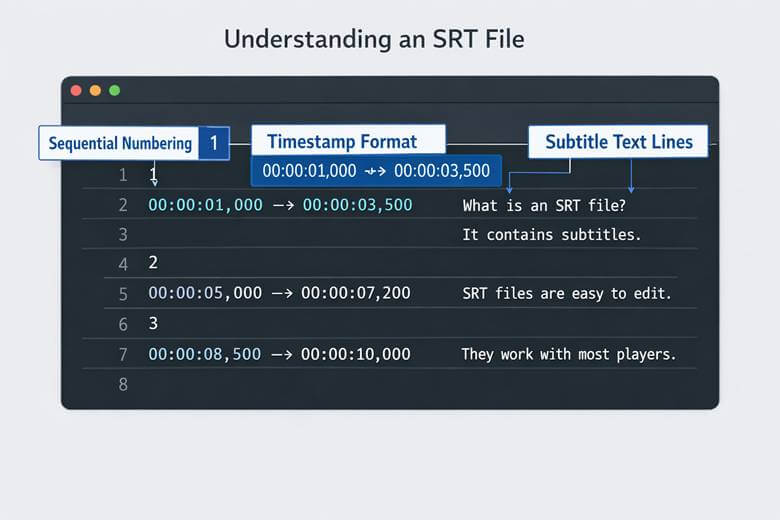
Every SRT file follows the same structure. Each subtitle entry contains exactly three elements:
- Sequential numbering (1, 2, 3, etc.)
- Precise timestamps in HH:MM:SS,mmm format (hours:minutes:seconds,milliseconds)
- The subtitle text
Here’s what an actual SRT file looks like:
1
00:00:01,000 –> 00:00:03,500
Welcome to our video tutorial.
2
00:00:03,500 –> 00:00:06,000

Today we’ll show you how to create engaging content.
See that blank line between entries? That’s crucial. It separates each subtitle block and keeps the file machine-readable while remaining human-friendly.
The timestamp format is standardized as HH:MM:SS,mmm, enabling exact synchronization with video content. That comma before the milliseconds? It’s required. Don’t use a period, or some players won’t recognize it.
Why SRT Files Matter for Video Creators
If you’re creating content for social media platforms or any video-based marketing, SRT files are important. Here’s why.
Universal Compatibility
SRT is the most widely-used subtitle format with universal compatibility across virtually every major video player, editing platform, and streaming service. YouTube? Check. Vimeo? Check. Facebook? Check. Your local VLC player? Absolutely.
This universal support means you create your SRT file once and use it everywhere. No converting. No reformatting. It just works.
Accessibility and SEO Benefits
Subtitles aren’t just nice to have, they’re often necessary. They make your content accessible to:
- Deaf and hard-of-hearing viewers
- Non-native speakers
- People watching without sound (85% of Facebook videos are watched muted)
- Search engines crawling your content for keywords
That last point matters more than you think. Search engines can’t watch videos, but they can read SRT files. Adding subtitles gives search engines more text to index, potentially boosting your SEO.
User Control and Flexibility
SRT files function as “sidecar files” that work alongside video files rather than embedding subtitles directly in the video. Your video file might be called awesome_video.mp4, and the subtitle file would be awesome_video.en_GB.srt.
This separation means users can toggle captions on or off based on their preferences. The appearance adapts to screen size based on platform specifications, making them compatible with most social and video platforms.
Important note: TikTok and Instagram don’t support external SRT files for closed captions. For these platforms, you’ll need to burn subtitles directly into your video or use their built-in auto-caption features. When creating short-form video content, plan your subtitle strategy accordingly.

How to Create SRT Files: Manual vs. Automated Methods
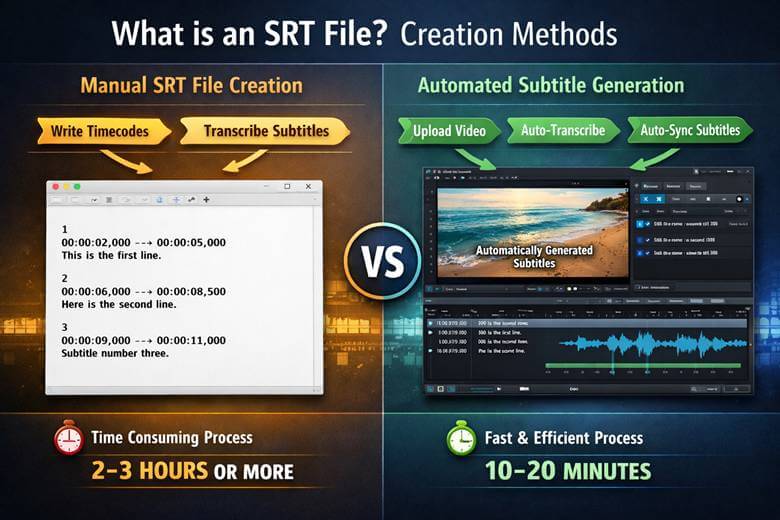
You’ve got options when it comes to creating SRT files. Let’s break down the practical approaches.
Manual Creation for Short Videos
Manual creation is practical for short clips using any basic text editor like Notepad (Windows) or TextEdit (Mac)]. It becomes impractical for longer videos requiring dozens or hundreds of timed entries, but for a quick 10 to 30-second video? Totally doable.
Here’s the process:
- Open a plain text editor (not Word—it adds formatting)
- Play your video and note the timestamps
- Type the sequential number
- Add the timestamp range
- Write the subtitle text
- Add a blank line
- Repeat for each subtitle
- Save with a .srt extension
Pro tip: When saving, make sure you’re saving as plain text, not rich text. The file extension must be .srt, not .txt.
Automated Tools and Software
For anything longer than a couple of minutes, automation saves massive time. Several options exist:
Professional subtitle software handles timing, syncing, and formatting automatically. You can import your video, and the software helps you create properly-formatted SRT files with visual waveforms for precise timing.
Online subtitle generators use AI to transcribe your audio and generate SRT files automatically. The accuracy has improved dramatically in recent years, though you’ll still want to review and edit the output.
Video editing platforms often include built-in subtitle tools. Many video editing applications can export SRT files directly from your project timeline.
If you’re creating B-roll footage or complex video projects, having subtitle software in your toolkit streamlines the entire process.
Converting Other Formats to SRT
Already have subtitles in a different format? No problem. Other subtitle formats (ASS, SSA, VTT) can convert to SRT using online tools or other software. The catch? Advanced formatting gets stripped during conversion to maintain universal compatibility.
For example, VTT (WebVTT) supports styling and web-specific features but is primarily used for HTML5 and web-based players. When you convert VTT to SRT, you lose the styling but gain broader compatibility.
Best Practices for Working with SRT Files
Creating an SRT file is one thing. Creating a good one requires attention to detail.
Timing and Synchronization
Precision matters. Your timestamps should align exactly with the spoken words in your video. A subtitle that appears half a second late creates a jarring viewing experience.
Reading speed is crucial too. The general rule: viewers need about 1.5 to 2 seconds to read a single line of text. If your subtitle disappears too quickly, viewers can’t process it.
Text Formatting Guidelines
Keep subtitle lines short, ideally under 42 characters per line. Two lines maximum per subtitle entry. This ensures readability across different screen sizes.
Break lines at natural points. Don’t split phrases awkwardly. For example:
❌ Bad:
I’m going to show you how to create
amazing social media content.
✅ Good:
I’m going to show you
how to create amazing social media content.
File Naming Conventions
Name your SRT files to match your video files. If your video is product_demo.mp4, your subtitle file should be product_demo.srt. For multiple languages, add language codes: product_demo.en.srt for English, product_demo.es.srt for Spanish.
This naming convention ensures video players automatically detect and load the correct subtitle file.
Common Issues and Troubleshooting
Even simple text files can cause headaches. Here are the usual suspects.
Encoding Problems
SRT files should use UTF-8 encoding to support special characters and multiple languages. If your subtitles display weird symbols or question marks, encoding is probably the culprit.
Fix it by opening the file in a text editor and saving it with UTF-8 encoding explicitly selected.
Timestamp Errors
The most common mistake? Using a period instead of a comma in the milliseconds section. It should be 00:00:01,000 not 00:00:01.000.
Another frequent error: overlapping timestamps. Each subtitle should end before the next one begins, or you’ll get display conflicts.
Platform-Specific Requirements
Different platforms have different requirements. YouTube accepts SRT files but also supports other formats. Facebook prefers SRT. Vimeo works with multiple formats but SRT is the safest bet.
When creating content for multiple social platforms, test your SRT files on each platform to ensure compatibility.
Conclusion
What is an SRT file? It’s a simple, universal subtitle format that makes your video content accessible, searchable, and professional. It contains nothing but sequential numbers, timestamps, and text. That simplicity is exactly what makes it powerful.
Whether you’re creating YouTube Shorts or long-form video, understanding SRT files gives you more control over how your audience experiences your content.
Next Steps
Ready to start using SRT files? Here’s what to do:
- Choose your creation method: Manual for short videos, automated for longer content
- Create a test SRT file for one of your existing videos
- Upload it to your platform and verify it displays correctly
- Add SRT creation to your standard workflow for all future videos
- Test across multiple platforms to ensure compatibility
The investment of time learning SRT files pays dividends in accessibility, SEO, and viewer engagement. Your audience, and your analytics, will thank you.
