Social media platforms are constantly coming out with new features and functionality.
Constantly evolving.
One of those advances is the Instagram Collage. When used well, it can unlock additional engagement without having to create an entire video.
In this guide, you’ll learn how to make a collage on Instagram, the different types, and even get ideas to boost your engagement.
Let’s dive in.
Key Takeaways
- Instagram's Layout feature lets you create professional collages with 2-6 photos directly in the app without third-party tools
- Multiple creation methods exist, including the Layout tool, photo stickers, and third-party apps for advanced customization
- Visual hierarchy and consistency are critical for creating collages that engage your audience and drive results
- Interactive elements like stickers, GIFs, and text overlays transform basic collages into engaging Story content
- Strategic collage use can boost engagement, showcase products effectively, and tell compelling visual stories
Understanding Instagram Story Collages
Instagram Story Collages have become a staple for creators and marketers alike. They're not just pretty pictures.
They're strategic content tools that help you communicate multiple messages simultaneously, showcase product variations, or tell a visual narrative that single images simply can't match.
The platform has recognized this need.
That's why Instagram introduced the Layout feature, which has been refined and improved throughout 2024 and into 2025. This native tool eliminates the need for complicated workarounds or expensive third-party applications.
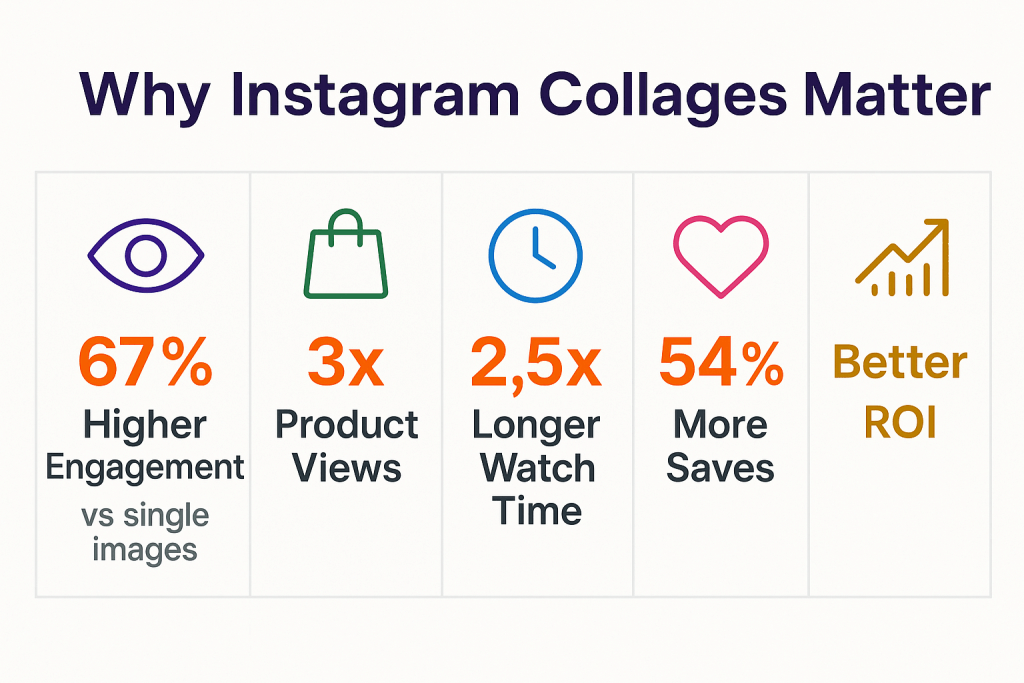
Why collages matter for your content strategy:
📊 Higher engagement rates – Multiple images create visual interest that keeps viewers watching longer
🛍️ Better product showcasing – Display different angles, colors, or variations in one frame
📖 Storytelling power – Create before/after comparisons, step-by-step tutorials, or event highlights
💡 Brand consistency – Maintain aesthetic cohesion while showing diverse content
⚡ Scroll-stopping content – Collages naturally draw the eye more than single images
For those creating automated short-form video content, understanding static collage creation provides foundational knowledge that translates well to video editing and composition.
How to Make a Collage on Instagram Story Using the Layout Feature
This is the method I recommend for 95% of users. It's fast, intuitive, and built right into Instagram. Here's exactly how to do it.
Step 1: Access Instagram Stories
First things first, you need to get to the Stories camera:
- Open the Instagram app on your smartphone
- Swipe right from your home feed, OR
- Tap your profile picture in the top-left corner with the "+" icon, OR
- Tap the "+" icon at the bottom center and select "Story"
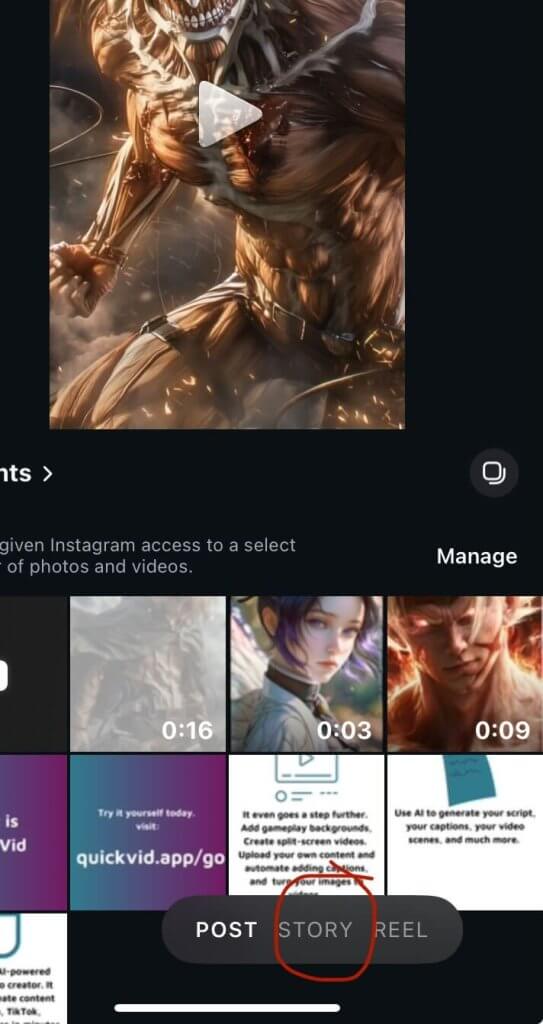
Any of these methods will launch the Instagram Stories camera interface.
Step 2: Locate and Tap the Layout Icon
Once you're in the Stories camera:
- Look at the left side of your screen
- You'll see a vertical menu of creative tools
- Find the Layout icon (it looks like a grid with multiple squares)
- Tap it to activate the Layout feature
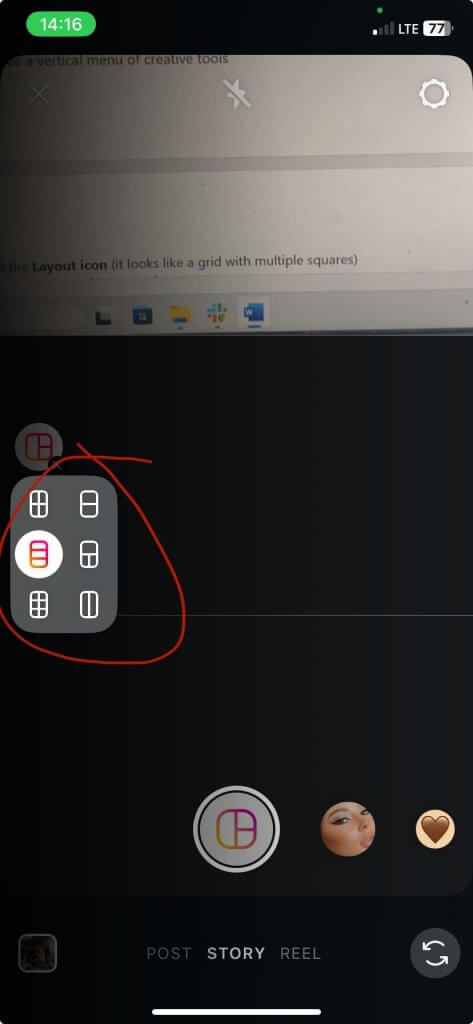
The screen will now display your selected layout template with empty frames waiting for your photos.
Step 3: Choose Your Layout Template
Instagram offers several grid configurations. The available options typically include:
- 2-photo layouts – Side-by-side or top-and-bottom arrangements
- 3-photo layouts – Various configurations including one large + two small
- 4-photo layouts – Perfect square grids or asymmetrical designs
- 6-photo layouts – Maximum density for comprehensive showcases
Swipe through the templates at the bottom of the screen to preview different arrangements.
Pick the one that best fits your content vision.
Pro tip: Consider your subject matter when choosing layouts. Product showcases work well with symmetrical grids, while storytelling content often benefits from asymmetrical layouts that create visual hierarchy.
Step 4: Capture or Select Your Photos

Now comes the fun part, adding your images:
Option A: Capture photos in real-time
- Tap each frame in your layout sequentially
- The camera will activate
- Take your photo
- It automatically fills that frame
- Move to the next frame and repeat
Option B: Select from your camera roll
- Tap the small gallery icon (usually bottom-left)
- Browse your recent photos
- Tap photos in the order you want them to appear
- They'll populate your layout frames automatically
You can mix and match these methods. Some frames from your camera roll, others captured fresh.
Step 5: Adjust and Refine Your Images
Here's where you fine-tune everything:
- Resize images – Pinch and zoom within each frame to adjust the crop
- Reposition – Drag images around within their frames to get the perfect composition
- Replace photos – Tap a frame and select a different image if needed
- Rotate – Some layouts allow rotation for creative angles
Take your time here. The difference between a mediocre collage and a great one often comes down to these small adjustments.
Step 6: Enhance with Instagram's Editing Tools
Once your basic collage is complete, it's time to make it pop:
Add filters:
- Swipe left or right to apply Instagram's built-in filters
- This helps unify the color tone across all images
- Particularly useful when photos were taken in different lighting conditions
Include interactive elements:
- Tap the sticker icon (top menu)
- Add polls, questions, quizzes, or countdown stickers
- These boost engagement significantly
Insert text overlays:
- Tap the "Aa" text icon
- Add context, captions, or calls-to-action
- Choose fonts that match your brand aesthetic
Apply GIFs and emojis:
- Search for relevant GIFs that complement your message
- Add personality without overwhelming the visual composition
- One or two emojis is enough to get your point across.
Draw or highlight:
- Use the pen tool to circle important elements
- Add arrows pointing to key features
- Create hand-drawn accents for a personal touch
Step 7: Publish Your Collage Story
When you're satisfied with your creation:
- Tap "Your Story" to share with all followers
- Select "Close Friends" for a more intimate audience
- Choose "Send To" to share with specific people
- Or tap "Save" to download without posting
And that's it! You've successfully created a professional-looking collage using Instagram's native Layout feature.
Alternative Method: How to Make a Collage on Instagram Story Using Photo Stickers
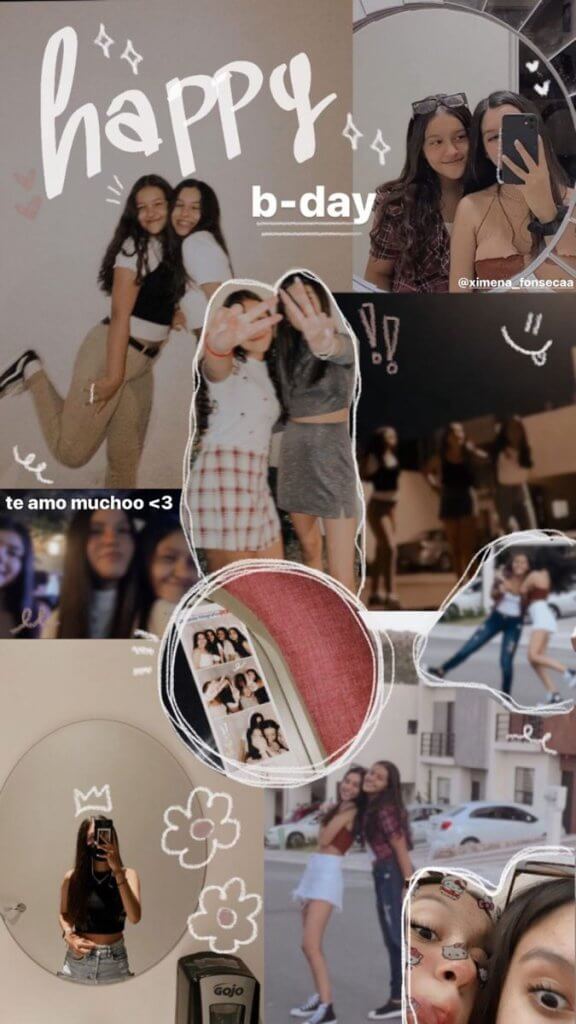
Here's a method that offers more creative freedom and flexibility. It's slightly more manual, but the results can be incredibly unique.
The Photo Sticker Technique is an approach that treats individual photos as stickers that you layer, resize, and arrange on a blank canvas:
Step 1: Start with a base
- Open Instagram Stories
- Take a photo or select a solid color background
- This will be your canvas
Step 2: Add photo stickers
- Tap the sticker icon at the top/bottom
- Select the "Photo" or "Gallery" sticker option
- Choose an image from your camera roll
- It appears as a draggable, resizable element
Step 3: Layer and arrange
- Add multiple photo stickers to build your collage
- Resize each by pinching and zooming
- Rotate images by using two fingers
- Position them anywhere on your canvas
- Layer them in any order you want
Step 4: Get creative with shapes
- Photo stickers can be circular or square
- Some have borders, others don't
- Mix shapes for visual interest
- Create overlapping effects for depth
Advantages of this method:
✨ Complete creative control over placement and sizing
🎨 Unique layouts that don't follow standard templates
📐 Asymmetrical designs for artistic expression
🔄 Easy adjustments – move, resize, or delete any element anytime
Disadvantages:
⏱️ More time-consuming than Layout
🎯 Requires a better eye for design and composition
📱 Can be fiddly on smaller phone screens
This method works exceptionally well for mood boards, aesthetic content, or when you want your collages to stand out from the standard grid layouts everyone else uses.
Advanced Techniques for Professional-Looking Collages
Want to take your Instagram Story collages from good to exceptional? These advanced techniques will set your content apart.
Keep in mind that these techniques are optional, and you don't need to use every one for all your Instagram Story Collages. Pick and choose the methods that make the most sense for you and master them.
Creating Visual Hierarchy
Not all images in your collage should compete for attention equally. Here's how to create focus:
Use size strategically:
- Make your hero image larger than supporting images
- Draw the eye to what matters most
- Create a clear entry point for viewers
Apply the rule of thirds:
- Position key elements at intersection points
- This creates natural, pleasing composition
- Works even within the constraints of grid layouts
Control color dominance:
- Use one bold, colorful image with neutral supporting images
- Or create color harmony with a consistent palette
- Avoid chaotic color clashes that confuse the eye
Maintaining Brand Consistency
For marketers and business owners, brand consistency isn't optional. It's essential. Even if you're a creator, you have a specific aesthetic that needs to be upheld:
Develop a collage style guide:
- Choose 2-3 layout templates you'll use regularly
- Define your color palette and stick to it
- Select consistent fonts for text overlays
- Decide on filter preferences
Create templates:
- Save layouts that work well for your content
- Reuse successful compositions with new images
- Build recognition through repetition
Batch create content:
- Design multiple collages in one session
- Maintain consistent aesthetic across all pieces
- Schedule them using Instagram's native scheduling or third-party tools
Those working on marketing strategies will find that consistent collage styling reinforces brand identity and improves content recognition.
Creating Visual Hierarchy
Different content goals require different collage approaches:
Product showcases:
- Use clean, symmetrical layouts
- Show multiple angles or color variations
- Include one lifestyle shot with product-only images
- Add text overlays with pricing or features
Event highlights:
- Choose layouts that tell a chronological story
- Mix wide shots and detail shots
- Include people's reactions and key moments
- Add location stickers for context
Before/after transformations:
- Use side-by-side 2-photo layouts
- Ensure consistent framing between images
- Label clearly which is before and which is after
- Consider adding arrows or dividing lines
Tutorial or educational content:
- Use 4-6 photo layouts for step-by-step processes
- Number each frame clearly
- Maintain consistent perspectives across frames
- Add brief text descriptions to each step
Third-Party Apps for Advanced Collage Creation
While Instagram's native tools are powerful, sometimes you need more control. That's where third-party apps come in.
When to Use Third-Party Apps:
- Custom aspect ratios beyond Instagram's standard templates
- Advanced editing features like selective color adjustment
- Custom borders, frames, or background patterns
- Text effects beyond Instagram's basic options
- The ability to save templates for repeated use
Recommended apps
Photoleap (formerly Enlight Photofox)
- Best for: Advanced creative control
- Key features: Custom borders, background colors, picture frames, ratio adjustments
- Pricing: Free with premium upgrades
- Platform: iOS and Android
Canva
- Best for: Template-based design with brand kits
- Key features: Thousands of templates, brand color saving, team collaboration
- Pricing: Free tier available, Pro version recommended
- Platform: iOS, Android, and web
Unfold
- Best for: Minimalist, aesthetic collages
- Key features: Story templates, subtle animations, typography tools
- Pricing: Free templates with premium packs
- Platform: iOS and Android
PicCollage
- Best for: Fun, casual collages with stickers and doodles
- Key features: Freestyle layouts, cutout tools, extensive sticker library
- Pricing: Free with ads, premium removes ads
- Platform: iOS and Android
Creative Collage Ideas for Maximum Engagement
Sometimes the technical how-to is easy. It's the creative "what" that stumps us. Here are proven collage concepts that drive engagement:
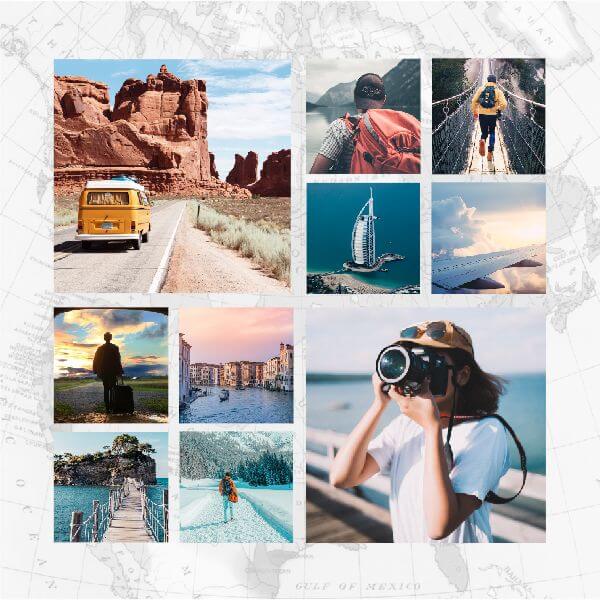
1. Travel Diaries and Location Showcases
- What to include:
- Landmark shots
- Local food and culture
- Candid travel moments
- Scenic landscapes
Engagement tip: Add location stickers and encourage followers to share their experiences in that location.
2. Product Launch Announcements
What to include:
- Multiple product angles
- Detail shots of key features
- Lifestyle context image
- Pricing or availability text overlay
Engagement tip: Include a countdown sticker for upcoming launches or a poll asking which color/variant followers prefer.

3. Behind-the-Scenes Process
What to include:
- Raw materials or starting point
- Work-in-progress shots
- Team members in action
- Final result
Engagement tip: Number the frames to show progression and add brief captions explaining each stage.
4. Customer Testimonials and Social Proof
What to include:
- Product in use
- Customer photos (with permission)
- Screenshot of reviews
- Results or transformations
Engagement tip: Tag customers who provided testimonials and use the "Add Yours" sticker to collect more user-generated content.
5. Seasonal or Holiday Content
What to include:
- Themed product arrangements
- Seasonal color palettes
- Holiday-specific offerings
- Limited-time promotions
Engagement tip: Use relevant seasonal stickers and GIFs to enhance the festive feel
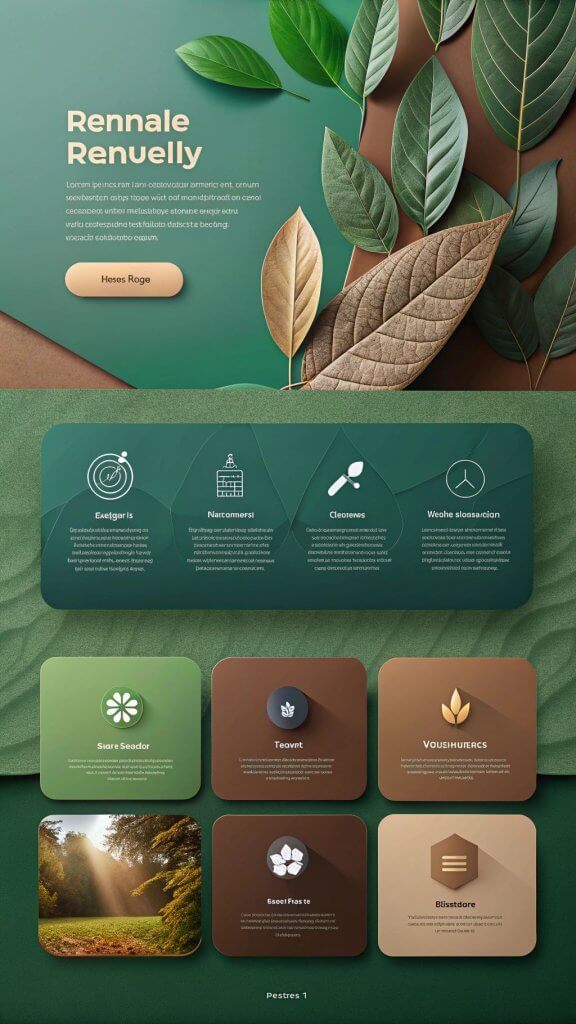
6. Comparison and Choice Posts
What to include:
• Two options side-by-side
• Clear labeling (Option A vs. Option B)
• Similar framing for fair comparison
• Poll sticker for voting
Engagement tip: This format naturally drives interaction through polls and comments.
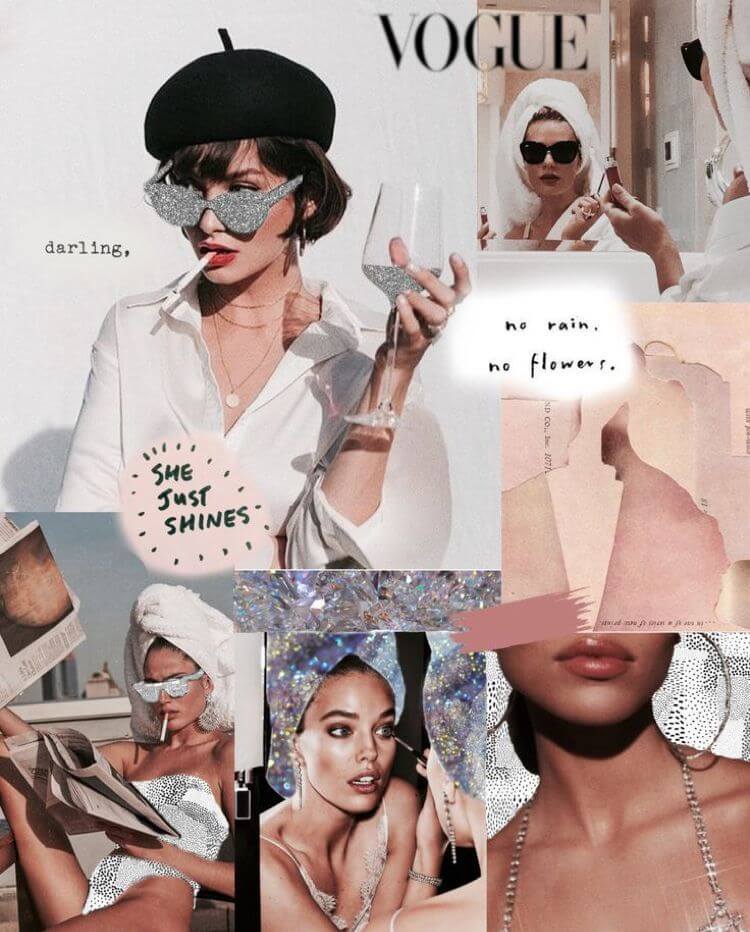
7. Mood Boards and Aesthetic Collections
What to include:
• Color-coordinated images
• Thematically related content
• Mix of textures and patterns
• Cohesive visual story
Engagement tip: Ask followers to describe the mood in one word or emoji using the question sticker.
8. Event Recaps and Highlights
What to include:
- Crowd shots showing energy
- Speaker or performer highlights
- Venue details
- Memorable moments
Engagement tip: Tag attendees, use event hashtags, and add location stickers for discoverability.
Best Practices for Instagram Story Collages
Let me share some lessons gleaned from reviewing countless Instagram Story Collages. This is the difference between collages that succeed and those that fail.
Image Quality Matters
Always use high-resolution images:
- Minimum 1080px width for optimal quality
- Avoid heavily compressed or pixelated photos
- Ensure good lighting in all images
- Keep focus sharp—blurry images look unprofessional
Consistency is key:
- Match exposure levels across images when possible
- Use the same filter on all photos in a collage
- Maintain similar saturation and contrast
- Create cohesion through color harmony
Text Overlay Guidelines
- Keep it readable:
- Use high-contrast text (dark on light or light on dark)
- Limit text to 5-7 words maximum
- Choose legible fonts over decorative ones
- Add subtle shadows or backgrounds behind text for clarity
Strategic placement:
- Don't cover important visual elements
- Position text in negative space
- Consider the safe zones (Avoid extreme edges. Instagram helps with this)
- Remember that profile pictures and UI elements cover portions of the screen
Timing and Posting Strategy
When to post collages:
- Peak engagement times for your specific audience
- During product launches or announcements
- After events while they're still top-of-mind
- As part of regular content series (e.g., "Motivation Monday" collages)
How often to use collages:
- Don't overdo it—variety keeps your content fresh
- Mix collages with single images, videos, and other formats
- Use collages strategically when multiple images truly add value
- Track engagement metrics to find your optimal frequency
For those managing multiple content types across platforms, understanding short-form video strategies can complement your collage approach.
Accessibility Considerations
Add alt text:
- Describe what's in your collage for visually impaired users
- Instagram allows alt text on Story images
- Be descriptive but concise
Use clear captions:
- Don't rely solely on visual information
- Add text overlays that explain context
- Include relevant hashtags for discoverability
Consider color blindness:
- Avoid relying on color alone to convey information
- Use patterns, shapes, or text labels as well
- Test your designs with color blindness simulators
Measuring Success: Analytics and Optimization
Creating beautiful collages is great, but are they actually working? Here's how to measure and improve:
Engagement metrics:
- Replies – Direct messages in response to your Story
- Shares – How many people send your Story to others
- Sticker taps – Interactions with polls, questions, etc.
- Link clicks – If you have swipe-up or link stickers enabled
- Profile visits – Traffic to your profile from the Story
Reach metrics:
- Impressions – Total views of your Story
- Reach – Unique accounts that viewed your Story
- Forward/back taps – How people navigate through your Story
- Exits – Where people leave your Story sequence
Optimization Based on Data
If engagement is low:
- Add more interactive elements (polls, questions, quizzes)
- Test different posting times
- Experiment with different collage styles
- Make your call-to-action clearer
If reach is low:
- Use more relevant hashtags
- Add location stickers
- Tag relevant accounts
- Post during peak activity hours
- Encourage shares with compelling content
If exits are high:
- Your collage might be too complex or cluttered
- Content might not be relevant to your audience
- Try simpler, clearer compositions
- Hook viewers with your first frame
If forwards are high:
- People are skipping through—your content might be too slow
- Consider whether your collage tells its story quickly enough
- Test more dynamic layouts that convey information faster
Those interested in data-driven content creation might also find value in exploring AI insights for content optimization.
Tools and Resources for Ongoing Success
Here are some resources to keep improving your collage game:
Design Inspiration Sources
- • Instagram Explore page – Search for #instagramcollage or #storycollage
- • Pinterest – Endless inspiration boards for layout ideas
- • Behance – Professional design portfolios
- • Dribbble – UI/UX designs that translate well to Stories
Remember, it’s inspiration. Don’t take other people's work and use it in a way that would make your audience think it’s your work. Fair use applies here.
Learning Resources
- Instagram's Creator Account resources – Official tutorials and best practices
- YouTube tutorials – Search for "Instagram Story collage tutorials (current year)"
- Design blogs – Canva, Adobe, and other design platforms offer free guides
- QuickVid blog – Regular updates on social media content creation
Free Stock Photo Resources
When you need additional images for your collages:
- Unsplash – High-quality, free-to-use photos
- Pexels – Curated stock photos and videos
- Pixabay – Extensive library with various licenses
- Burst by Shopify – Commercial-use photos for businesses
Color Palette Tools
Create cohesive collages with coordinated colors:
- Adobe Color – Extract palettes from images
- Coolors – Generate complementary color schemes
- Color Hunt – Curated palette collections
- Canva Color Palette Generator – Upload images to extract colors
Conclusion: Your Collage Creation Action Plan
We've covered a lot of ground. Let's bring it all together with actionable next steps you can take today.
Your immediate action plan:
- Practice the basics – Open Instagram right now and create your first collage using the Layout feature. Don't overthink it. Just do it.
- Experiment with both methods – Try the Layout tool for speed, then test the photo sticker method for creative freedom. Discover which feels more natural for your workflow.
- Develop your style – Choose 2-3 layout templates that align with your brand. Create a simple style guide documenting your preferred fonts, colors, and composition approaches.
- Create a content calendar – Plan where collages fit into your broader content strategy. Don't use them randomly—use them strategically.
- Track and optimize – Monitor your Story analytics. Which collage types get the most engagement? Double down on what works.
Remember, the best collage is the one you actually create and post. Perfection is the enemy of progress. Start simple, stay consistent, and refine your approach based on real feedback from your audience.
For those looking to expand beyond static images into video content, check out QuickVid for tools that help create engaging short-form videos across multiple platforms.