If you’ve been scrambling to find CapCut alternatives due to its increased restrictions, or after hearing about privacy concerns, you’re not alone.
Thousands of creators are searching for reliable video editing tools that won’t compromise their data security.
The good news? There are plenty of powerful, secure alternatives that’ll keep your content creation workflow running smoothly. Some are even better than CapCut.
This guide breaks down the top seven CapCut alternatives that creators and marketers are switching to. Whether you need mobile video editing, desktop power tools, or AI-powered automation, you’ll find the perfect fit here.
Key Takeaways
- CapCut faces ongoing security concerns that make switching to alternatives a smart move for professional creators
- Free and paid options exist across mobile and desktop platforms, each with unique strengths for different content types
- QuickVid leads in automation, offering AI-powered video creation that saves hours of manual editing time
- Privacy-focused alternatives like DaVinci Resolve provide professional features without data collection concerns
- The best choice depends on your workflow: mobile creators need different tools than desktop editors or automated content producers
What Is CapCut and Why Are Creators Looking for Alternatives?
CapCut is ByteDance’s free video editing app that exploded in popularity alongside TikTok. It’s packed with trendy effects, templates, and social media-friendly features that made it the go-to choice for content creators worldwide.
The app offers intuitive editing tools, AI-powered features, and seamless integration with TikTok. For beginners and intermediate creators, it hit the sweet spot between simplicity and functionality.
But here’s the problem.
The CapCut Concerns That Changed Everything
Security and Privacy Issues: As a ByteDance product, CapCut faces the same scrutiny as TikTok regarding data collection practices. The app collects extensive user data, raising red flags for creators concerned about privacy.
Content Ownership Questions: Like many free tools, CapCut’s terms of service include clauses about content usage that make some professional creators uncomfortable.
Limited Professional Features: While great for social media clips, CapCut lacks the advanced color grading, audio mixing, and export options that professional projects require.
Platform Dependency: Relying on a single tool controlled by one company creates risk. What happens if features change, pricing models shift, or the platform shuts down?
These concerns have pushed creators to explore more secure, reliable, and professional video editing solutions. Let’s look at the best options available.
The 7 Best CapCut Alternatives
1. QuickVid – Best for Automated Video Creation
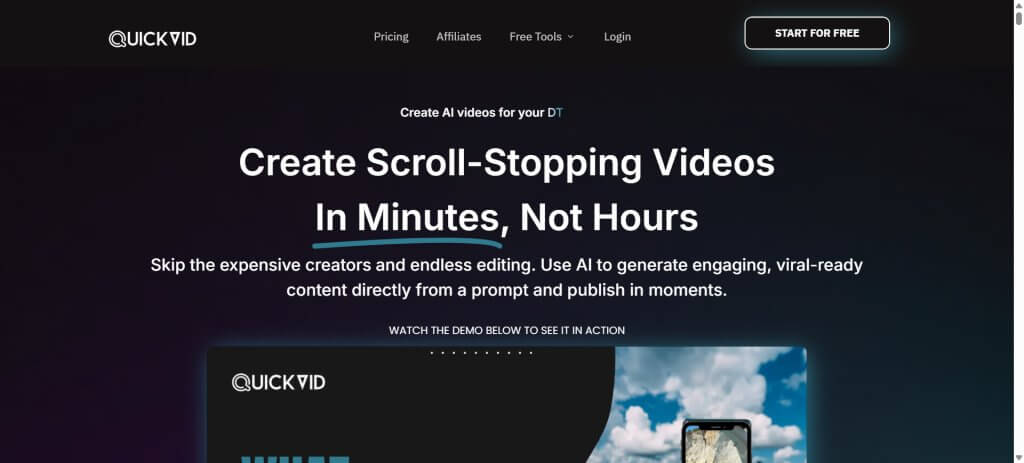
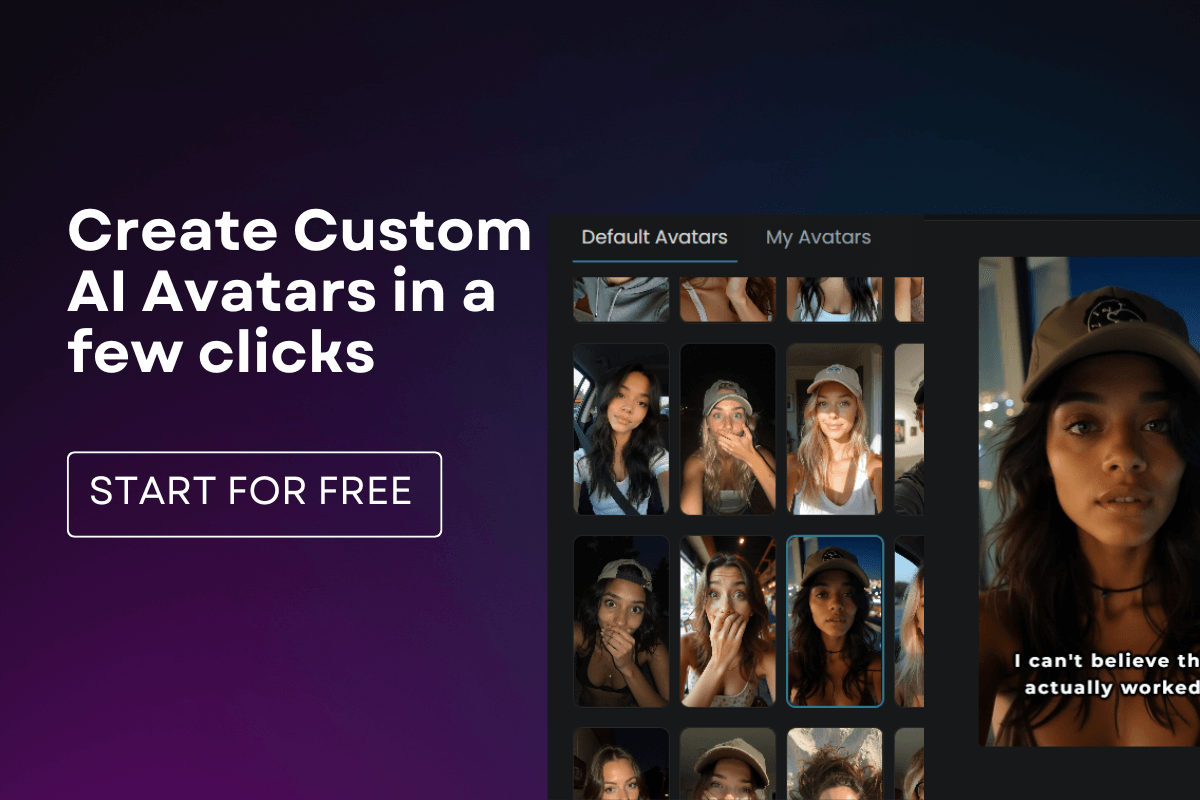
QuickVid takes a completely different approach to video editing. Instead of manually editing clips, you generate complete videos using AI automation. It’s perfect for creators who need to produce high volumes of content without spending hours in an editor.
The platform specializes in automated short-form video creation, transforming text prompts into fully edited videos with visuals, voiceovers, captions, and music. For marketers and business owners who need consistent content output, this is a game-changer.

Major Features:
- AI-powered video generation from text prompts
- Automated voiceover creation with multiple voice options
- Built-in stock footage and image libraries
- Auto-generated captions and subtitles
- Multiple video format support for different platforms
- Batch video creation for scaling content production
- Green screen and meme templates for trending content
Pricing: QuickVid offers flexible plans starting with a free trial. Paid plans begin at /month or for one-off purchases, with annual options available. The platform frequently runs promotions, so check their pricing page for current offers.
Best For: Marketers, business owners, and creators who prioritize efficiency and volume over manual creative control. If you’re managing multiple social media accounts or need to produce dozens of videos weekly, QuickVid’s automation saves massive amounts of time.
2. DaVinci Resolve – Best Free Professional Editor
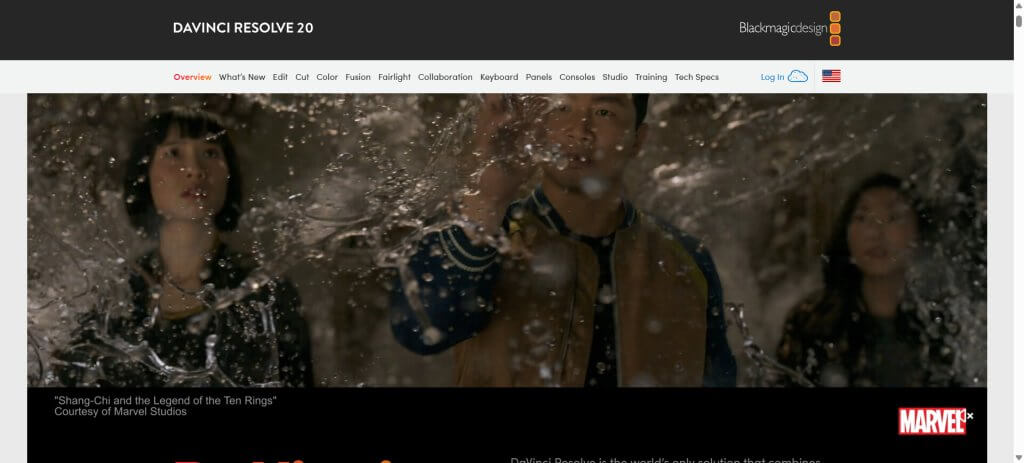
DaVinci Resolve is the industry secret that professionals don’t want you to know about. It’s completely free (with an optional paid version), yet it rivals software costing hundreds of dollars. Hollywood studios use DaVinci Resolve for color grading in major films.
The learning curve is steeper than CapCut, but the payoff is enormous. You get professional-grade color correction, audio post-production, visual effects, and editing tools that’ll serve you from beginner to expert level.
Major Features:
- Professional color grading tools (industry-leading)
- Advanced audio editing with Fairlight audio
- Visual effects and motion graphics with Fusion
- Multi-user collaboration features
- AI-powered tools for auto-captioning and object removal
- Support for all professional video formats and codecs
- Unlimited timeline tracks and effects
Pricing: DaVinci Resolve is free with extensive features. DaVinci Resolve Studio costs a one-time payment of 5 and adds advanced features like HDR grading, AI tools, and collaboration features. No subscription required.
Best CapCut Alternative For: Creators ready to invest time in learning professional tools. If you’re serious about video production and want software that’ll grow with your skills, DaVinci Resolve is unbeatable value.
3. InShot – Best Mobile-First Alternative
InShot is the mobile video editor that feels most similar to CapCut’s interface and workflow. If you’re specifically looking for a mobile alternative that won’t disrupt your editing habits, InShot is your answer.
The app focuses on social media content creation with features tailored for Instagram, TikTok, and YouTube Shorts. It’s lightweight, fast, and doesn’t drain your phone’s battery like some heavier apps.
Major Features:
- Intuitive touch-based editing interface
- Extensive music and sound effects library
- Text and sticker overlays with animation options
- Video speed controls and reverse effects
- Chroma key (green screen) functionality
- Picture-in-picture and split-screen layouts
- Direct sharing to social media platforms
Pricing: InShot is free with watermarks and ads. InShot Pro removes watermarks and unlocks all features for .99/month or .99/year. A lifetime purchase option is available for .99.
Best For: Mobile-only creators who want a simple, fast editor without desktop requirements. It’s particularly good for Instagram Reels and TikTok creators who edit exclusively on their phones.
4. VivaVideo – Best for Template-Based Editing
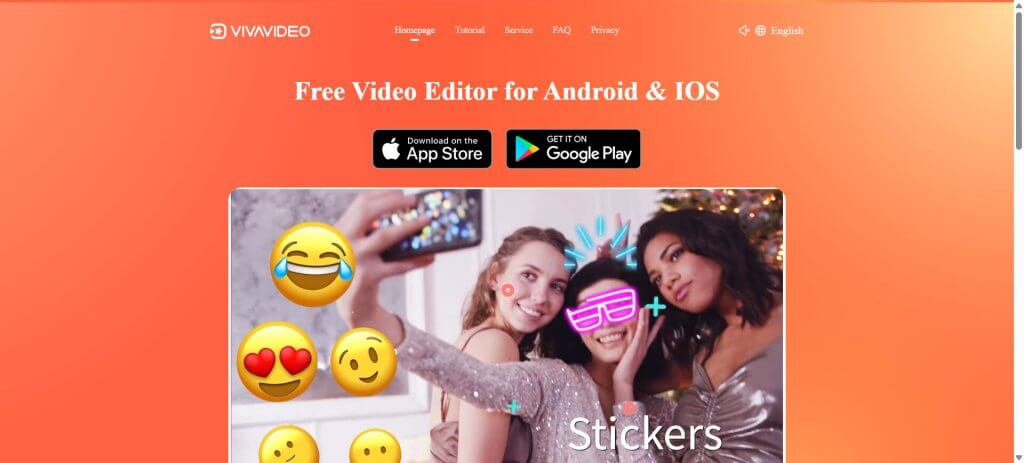
VivaVideo takes the template approach to the next level. The app offers thousands of pre-made templates for different video styles, making it incredibly fast to create polished content on mobile devices, even without editing experience.
The template library is constantly updated with trending styles, so you’re always working with current aesthetics. For creators who want results without learning complex editing techniques, this approach is perfect.
Major Features:
- Massive library of video templates and themes
- AI-powered video enhancement tools
- Advanced text and subtitle options
- Transition effects and filters
- Collage and slideshow makers
- Beauty and face editing tools
- Video compression for faster uploads
Pricing: VivaVideo offers a free version with limitations. VIP membership costs .99/month or .99/year, unlocking premium templates, removing watermarks, and adding advanced features.
Best For: Beginners and creators who prioritize speed over customization. If you need to pump out consistent, good-looking content quickly, templates are your friend.
5. Filmora – Best for Beginner-Friendly Desktop Editing
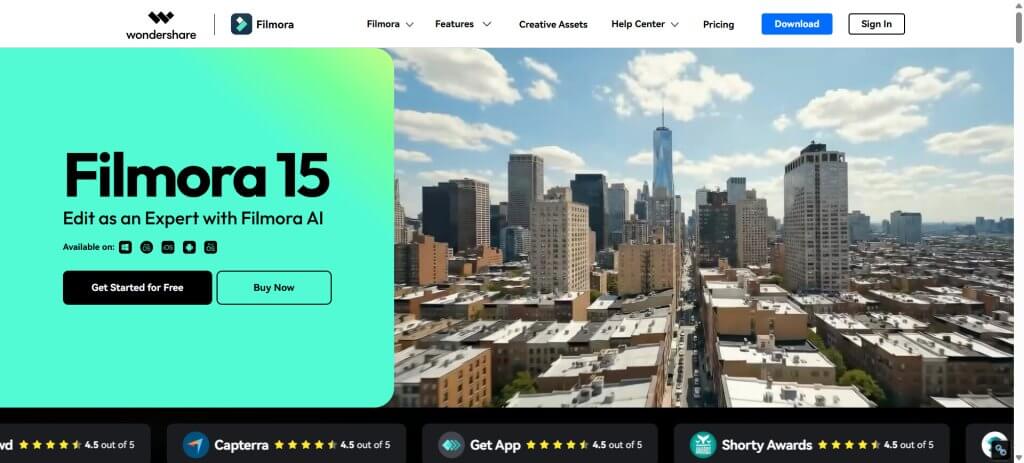
Wondershare Filmora strikes the perfect balance between simplicity and capability for desktop users. It’s powerful enough for serious projects but approachable enough that you won’t spend weeks learning the interface.
The software includes AI-powered features that automate tedious tasks like audio ducking, color matching, and motion tracking. These smart tools let beginners achieve professional results without mastering complex techniques.
Major Features:
- Drag-and-drop timeline interface
- AI-powered audio ducking and silence detection
- Motion tracking and keyframe animation
- Green screen and masking tools
- Extensive effects, transitions, and title library
- Direct export to social media platforms
- Screen recording functionality
Pricing: Filmora offers a free trial with watermarks. Annual plans start at .99/year, and a perpetual license costs .99 (one-time payment). Business and educational licenses are available at higher price points.
Best For: Desktop creators who want professional results without professional complexity. It’s ideal for YouTube creators, small business owners, and marketers creating video content for multiple platforms.
6. Canva Video Editor – Best for Design-Integrated Workflows
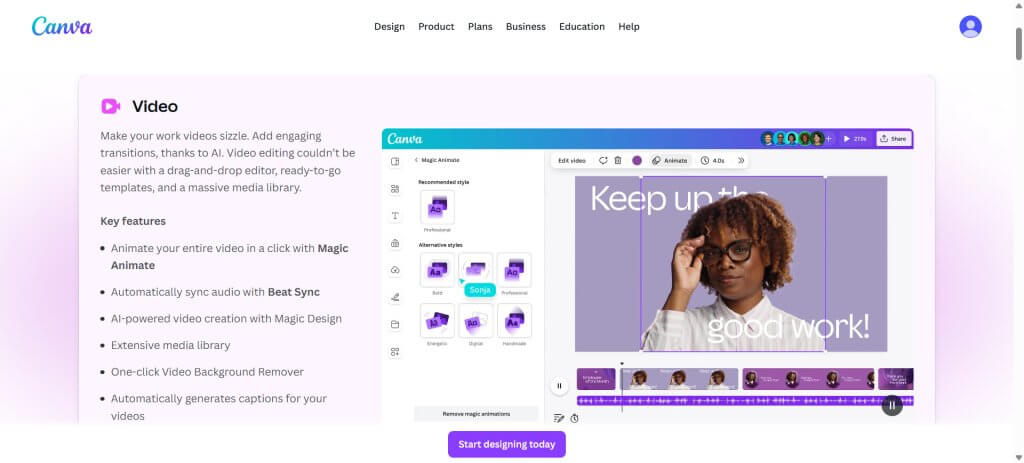
Canva’s video editor might surprise you. While Canva started as a graphic design tool, its video capabilities have evolved into a legitimate editing platform. The real advantage is seamless integration with Canva’s design ecosystem.
If you already use Canva for social media graphics, presentations, or marketing materials, adding video editing to your workflow is effortless. You can repurpose design elements across different content types, maintaining brand consistency without switching platforms.
Major Features:
- Integration with Canva’s design tools and templates
- Extensive stock video and audio library
- Brand kit for consistent styling across content
- Collaboration features for team projects
- Animation and transition effects
- Text-to-video capabilities
- One-click resizing for different platforms
Pricing: Canva Free includes basic video editing. Canva Pro costs .99/month (or 9.99/year) and unlocks premium stock content, advanced features, and brand kit functionality. Team plans start at .99/month for up to 5 users.
Best For: Creators and marketers who already live in Canva’s ecosystem. If you’re designing thumbnails, social graphics, and presentations in Canva, keeping your video editing in the same platform streamlines your entire workflow.
How to Choose the Right CapCut Alternative for Your Needs
Picking the right video editor isn’t about finding the “best” tool. It’s about finding the best tool for you. Here’s how to narrow down your options based on what matters for your content creation workflow.
Consider Your Primary Platform
Different platforms have different requirements. TikTok and Instagram Reels favor vertical videos with quick cuts and trending effects.
YouTube Shorts needs similar formatting but often benefits from slightly longer content. Desktop platforms like YouTube long-form require more sophisticated editing capabilities.
Mobile editors like InShot and VivaVideo excel at quick, vertical content. Desktop tools like DaVinci Resolve and Filmora handle longer, more complex projects. QuickVid works across platforms by generating content optimized for wherever you’re posting.
Evaluate Your Technical Skill Level
Be honest about your current abilities and how much time you want to invest in learning. CapCut was popular partly because it was easy to pick up. Some alternatives match that simplicity; others require more commitment.
Beginner-friendly options: InShot, VivaVideo, Canva Video Editor, and Filmora offer intuitive interfaces with minimal learning curves.
Intermediate options: Adobe Premiere Rush and QuickVid provide more power while remaining accessible.
Advanced options: DaVinci Resolve offers professional capabilities but demands time investment to master.
Privacy and Security Priorities
For creators concerned about the data collection issues that plague CapCut, privacy should factor into your decision. Desktop-based editors like DaVinci Resolve and Filmora process everything locally on your computer, giving you complete control over your content and data.
Cloud-based tools offer convenience but require trusting the platform with your content. Read privacy policies carefully, especially if you’re creating content for clients or handling sensitive material.
Budget Considerations
Free tools can be surprisingly powerful. DaVinci Resolve offers professional features at zero cost. InShot and VivaVideo provide solid free tiers. Canva’s free plan includes basic video editing.
But paid tools often save time through better features, which translates to money for professional creators. Calculate the value of your time. If a /month tool saves you 10 hours monthly, that’s a bargain for anyone billing above /hour for their time.
Feature Comparison: CapCut Alternatives at a Glance
| Tool | Best For | Mobile | Desktop | AI Features | Starting Price |
| QuickVid | Automation & volume | ✅ | ✅ | ⭐⭐⭐⭐⭐ | /month |
| Premiere Rush | Cross-platform sync | ✅ | ✅ | ⭐⭐⭐ | .99/month |
| DaVinci Resolve | Professional editing | ❌ | ✅ | ⭐⭐⭐⭐ | Free |
| InShot | Mobile simplicity | ✅ | ❌ | ⭐⭐ | Free/.99/month |
| VivaVideo | Templates | ✅ | ❌ | ⭐⭐⭐ | Free/.99/month |
| Filmora | Beginner desktop | ❌ | ✅ | ⭐⭐⭐⭐ | .99/year |
| Canva Video | Design integration | ✅ | ✅ | ⭐⭐⭐ | Free/.99/month |
The Future of Video Editing: AI and Automation
Video editing is changing fast. The manual, clip-by-clip editing that’s dominated for decades is giving way to AI-powered automation that handles repetitive tasks instantly.
AI-Powered Features Becoming Standard: Auto-captioning, background removal, audio enhancement, and smart cropping are moving from premium features to baseline expectations. Tools that don’t offer these capabilities will struggle to compete.
Text-to-Video Generation: The ability to generate complete videos from text descriptions is evolving rapidly. What once produced janky, obviously AI-generated content now creates surprisingly polished results. QuickVid’s AI video generation demonstrates how far this technology has progressed.
Automated Content Repurposing: Smart tools can now take one long-form video and automatically generate multiple short-form clips optimized for different platforms. This kind of automation lets creators maximize content value without multiplying editing time.
Privacy-First Editing: As data privacy concerns grow, expect more tools offering local processing and transparent data policies. Creators are increasingly willing to pay for tools that respect their privacy and content ownership.
The editors that’ll dominate in the coming years won’t just be powerful—they’ll be smart, fast, and respectful of creator privacy. The CapCut alternatives listed here represent the direction the industry is heading.
Conclusion: Choose Your CapCut Alternative and Start Creating
For mobile creators who want simplicity, InShot delivers familiar functionality without the security concerns. Desktop editors seeking professional capabilities should explore DaVinci Resolve. It’s free, powerful, and future-proof.
But if you’re ready to completely level up your workflow, QuickVid offers something fundamentally different: automated video creation that scales your content production without scaling your time investment. Instead of spending hours editing, you generate complete videos in minutes.
The best time to switch was yesterday. The second-best time is now.
Pick an alternative from this list, create your first test video this week, and start building a more secure, sustainable content creation workflow. Your future self will thank you for making the switch before circumstances force your hand.